
Super Validator Helm Deployment
Documentation Index
Fetch the complete documentation index at: https://docs.canton.network/llms.txt Use this file to discover all available pages before exploring further.
Super Validator Helm Deployment
Deploying a Super Validator node on Kubernetes using Helm charts
This section describes deploying a Super Validator (SV) node in kubernetes using Helm charts. The Helm charts deploy a complete node and connect it to a target cluster.
Requirements
2. A development workstation with the following:

   > 1. `kubectl` - At least v1.26.1
   > 2. `helm` - At least v3.11.1

3. Your cluster needs a static egress IP. After acquiring that, propose to the other SVs to add it to the IP allowlist.

4. Please download the release artifacts containing the sample Helm value files, from here: <a href="https://github.com/digital-asset/decentralized-canton-sync/releases/download/v0.6.4/0.6.4_splice-node.tar.gz">Download Bundle (DevNet 0.6.4)</a>, and extract the bundle:

```bash theme={"theme":{"light":"github-light","dark":"github-dark"}}
tar xzvf 0.6.4_splice-node.tar.gz
```

5. Please inquire the migration id and serial id of the global synchronizer on your target network. The migration ID is frozen at the value after the last major upgrade and is only used for `migration.id` in the helm chart values. The serial ID is 0 for the initial synchronizer deployment and is incremented by 1 for each logical synchronizer upgrade. The serial ID is used for helm release names, DNS entries, database names, and deployment naming.

```bash theme={"theme":{"light":"github-light","dark":"github-dark"}}
export MIGRATION_ID=0
export SERIAL_ID=0
```

<Warning>
  **If you lose your keys, you lose access to your coins**. While regular backups are not necessary to run your node,

  they are **strongly** recommended for recovery purposes.

  You should regularly back up all databases in your deployment and ensure you always have an up-to-date identities backup.

  Super Validators retain the information necessary to allow you to recover your Canton Coin from an identities backup.

  On the other hand, Super Validators **do not** retain transaction details from applications they are not involved in.

  This means that if you have other applications installed, the Super Validators cannot help you recover data from those apps;

  you can only rely on your own backups.

  (More information in [Backups section for Validators](/docs/canton/global-synchronizer-production-operations-validator-backups) or [Backups section for SVs](/docs/canton/global-synchronizer-production-operations-sv-backup))
</Warning>2. A development workstation with the following:
> 1. `kubectl` - At least v1.26.1
> 2. `helm` - At least v3.11.1
3. Your cluster needs a static egress IP. After acquiring that, propose to the other SVs to add it to the IP allowlist.
4. Please download the release artifacts containing the sample Helm value files, from here: <a href="https://github.com/digital-asset/decentralized-canton-sync/releases/download/v0.6.3/0.6.3_splice-node.tar.gz">Download Bundle (TestNet 0.6.3)</a>, and extract the bundle:
```bash theme={"theme":{"light":"github-light","dark":"github-dark"}}
tar xzvf 0.6.3_splice-node.tar.gz
```
5. Please inquire the migration id and serial id of the global synchronizer on your target network. The migration ID is frozen at the value after the last major upgrade and is only used for `migration.id` in the helm chart values. The serial ID is 0 for the initial synchronizer deployment and is incremented by 1 for each logical synchronizer upgrade. The serial ID is used for helm release names, DNS entries, database names, and deployment naming.
```bash theme={"theme":{"light":"github-light","dark":"github-dark"}}
export MIGRATION_ID=0
export SERIAL_ID=0
```
<Warning>
**If you lose your keys, you lose access to your coins**. While regular backups are not necessary to run your node,
they are **strongly** recommended for recovery purposes.
You should regularly back up all databases in your deployment and ensure you always have an up-to-date identities backup.
Super Validators retain the information necessary to allow you to recover your Canton Coin from an identities backup.
On the other hand, Super Validators **do not** retain transaction details from applications they are not involved in.
This means that if you have other applications installed, the Super Validators cannot help you recover data from those apps;
you can only rely on your own backups.
(More information in [Backups section for Validators](/docs/canton/global-synchronizer-production-operations-validator-backups) or [Backups section for SVs](/docs/canton/global-synchronizer-production-operations-sv-backup))
</Warning>2. A development workstation with the following:
> 1. `kubectl` - At least v1.26.1
> 2. `helm` - At least v3.11.1
3. Your cluster needs a static egress IP. After acquiring that, propose to the other SVs to add it to the IP allowlist.
4. Please download the release artifacts containing the sample Helm value files, from here: <a href="https://github.com/digital-asset/decentralized-canton-sync/releases/download/v0.6.2/0.6.2_splice-node.tar.gz">Download Bundle (MainNet 0.6.2)</a>, and extract the bundle:
```bash theme={"theme":{"light":"github-light","dark":"github-dark"}}
tar xzvf 0.6.2_splice-node.tar.gz
```
5. Please inquire the migration id and serial id of the global synchronizer on your target network. The migration ID is frozen at the value after the last major upgrade and is only used for `migration.id` in the helm chart values. The serial ID is 0 for the initial synchronizer deployment and is incremented by 1 for each logical synchronizer upgrade. The serial ID is used for helm release names, DNS entries, database names, and deployment naming.
```bash theme={"theme":{"light":"github-light","dark":"github-dark"}}
export MIGRATION_ID=0
export SERIAL_ID=0
```
<Warning>
**If you lose your keys, you lose access to your coins**. While regular backups are not necessary to run your node,
they are **strongly** recommended for recovery purposes.
You should regularly back up all databases in your deployment and ensure you always have an up-to-date identities backup.
Super Validators retain the information necessary to allow you to recover your Canton Coin from an identities backup.
On the other hand, Super Validators **do not** retain transaction details from applications they are not involved in.
This means that if you have other applications installed, the Super Validators cannot help you recover data from those apps;
you can only rely on your own backups.
(More information in [Backups section for Validators](/docs/canton/global-synchronizer-production-operations-validator-backups) or [Backups section for SVs](/docs/canton/global-synchronizer-production-operations-sv-backup))
</Warning>Generating an SV identity
SV operators are identified by a human-readable name and an EC public key. This identification is stable across deployments of the Global Synchronizer. You are, for example, expected to reuse your SV name and public key between (test-)network resets.
Use the following shell commands to generate a keypair in the format expected by the SV node software:
# Generate the keypair
openssl ecparam -name prime256v1 -genkey -noout -out sv-keys.pem

# Encode the keys
public_key_base64=$(openssl ec -in sv-keys.pem -pubout -outform DER 2>/dev/null | base64 | tr -d "\n")
private_key_base64=$(openssl pkcs8 -topk8 -nocrypt -in sv-keys.pem -outform DER 2>/dev/null | base64 | tr -d "\n")

# Output the keys
echo "public-key = \"$public_key_base64\""
echo "private-key = \"$private_key_base64\""

# Clean up
rm sv-keys.pem
These commands should result in an output similar to:
public-key = "MFkwEwYHKoZIzj0CAQYIKoZIzj0DAQcDQgAE1eb+JkH2QFRCZedO/P5cq5d2+yfdwP+jE+9w3cT6BqfHxCd/PyA0mmWMePovShmf97HlUajFuN05kZgxvjcPQw=="
private-key = "MEECAQAwEwYHKoZIzj0CAQYIKoZIzj0DAQcEJzAlAgEBBCBsFuFa7Eumkdg4dcf/vxIXgAje2ULVz+qTKP3s/tHqKw=="
Store both keys in a safe location. You will be using them every time you want to deploy a new SV node, i.e., also when deploying an SV node to a different deployment of the Global Synchronizer and for redeploying an SV node after a (test-)network reset.
The public-key and your desired SV name need to be approved by a threshold of currently active SVs in order for you to be able to join the network as an SV. For DevNet and the current early version of TestNet, send the public-key and your desired SV name to your point of contact at Digital Asset (DA) and wait for confirmation that your SV identity has been approved and configured at existing SV nodes.
Preparing a Cluster for Installation
Create the application namespace within Kubernetes.
kubectl create ns svConfiguring Authentication
For security, the various components that comprise your SV node need to be able to authenticate themselves to each other, as well as be able to authenticate external UI and API users. We use JWT access tokens for authentication and expect these tokens to be issued by an (external) OpenID Connect (OIDC) provider. You must:
- Set up an OIDC provider in such a way that both backends and web UI users are able to obtain JWTs in a supported form.
- Configure your backends to use that OIDC provider.
OIDC Provider Requirements
This section provides pointers for setting up an OIDC provider for use with your SV node. Feel free to skip directly to helm-sv-auth0 if you plan to use Auth0 for your SV node’s authentication needs. That said, we encourage you to move to an OIDC provider different from Auth0 for the long-term production deployment of your SV, to avoid security risks resulting from a majority of SVs depending on the same authentication provider (which could expose the whole network to potential security problems at this provider).
Your OIDC provider must be reachable1 at a well known (HTTPS) URL. In the following, we will refer to this URL as OIDC_AUTHORITY_URL. Both your SV node and any users that wish to authenticate to a web UI connected to your SV node must be able to reach the OIDC_AUTHORITY_URL. We require your OIDC provider to provide a discovery document at OIDC_AUTHORITY_URL/.well-known/openid-configuration. We furthermore require that your OIDC provider exposes a JWK Set document. In this documentation, we assume that this document is available at OIDC_AUTHORITY_URL/.well-known/jwks.json.
For machine-to-machine (SV node component to SV node component) authentication, your OIDC provider must support the OAuth 2.0 Client Credentials Grant flow. This means that you must be able to configure (CLIENT_ID, CLIENT_SECRET) pairs for all SV node components that need to authenticate to others. Currently, these are the validator app backend and the SV app backend - both need to authenticate to the SV node’s Canton participant. The sub field of JWTs issued through this flow must match the user ID configured as ledger-api-user in helm-sv-auth-secrets-config. In this documentation, we assume that the sub field of these JWTs is formed as CLIENT_ID@clients. If this is not true for your OIDC provider, pay extra attention when configuring ledger-api-user values below.
For user-facing authentication - allowing users to access the various web UIs hosted on your SV node, your OIDC provider must support the OAuth 2.0 Authorization Code Grant flow and allow you to obtain client identifiers for the web UIs your SV node will be hosting. Currently, these are the SV web UI, the Wallet web UI and the CNS web UI. You might be required to whitelist a range of URLs on your OIDC provider, such as “Allowed Callback URLs”, “Allowed Logout URLs”, “Allowed Web Origins”, and “Allowed Origins (CORS)”. If you are using the ingress configuration of this runbook, the correct URLs to configure here are https://sv.sv.YOUR_HOSTNAME (for the SV web UI) , https://wallet.sv.YOUR_HOSTNAME (for the Wallet web UI) and https://cns.sv.YOUR_HOSTNAME (for the CNS web UI). An identifier that is unique to the user must be set via the sub field of the issued JWT. On some occasions, this identifier will be used as a user name for that user on your SV node’s Canton participant. In helm-sv-install, you will be required to configure a user identifier as the validatorWalletUser -make sure that whatever you configure there matches the contents of the sub field of JWTs issued for that user.
All JWTs issued for use with your SV node:
- must be signed using the RS256 signing algorithm.
In the future, your OIDC provider might additionally be required to issue JWTs with a scope explicitly set to daml_ledger_api (when requested to do so as part of the OAuth 2.0 authorization code flow).
Summing up, your OIDC provider setup must provide you with the following configuration values:
| Name | Value |
|---|---|
| OIDC_AUTHORITY_URL | The URL of your OIDC provider for obtaining the openid-configuration and jwks.json. |
| VALIDATOR_CLIENT_ID | The client id of your OIDC provider for the validator app backend |
| VALIDATOR_CLIENT_SECRET | The client secret of your OIDC provider for the validator app backend |
| SV_CLIENT_ID | The client id of your OIDC provider for the SV app backend |
| SV_CLIENT_SECRET | The client secret of your OIDC provider for the SV app backend |
| WALLET_UI_CLIENT_ID | The client id of your OIDC provider for the wallet UI. |
| SV_UI_CLIENT_ID | The client id of your OIDC provider for the SV UI. |
| CNS_UI_CLIENT_ID | The client id of your OIDC provider for the CNS UI. |
We are going to use these values, exported to environment variables named as per the Name column, in helm-sv-auth-secrets-config and helm-sv-install.
When first starting out, it is suggested to configure all three JWT token audiences below to the same value: https://canton.network.global.
Once you can confirm that your setup is working correctly using this (simple) default, we strongly recommend that you configure dedicated audience values that match your deployment and URLs. This will help you to avoid potential security issues that might arise from using the same audience for all components.
You can configure audiences of your choice for the participant ledger API, the validator backend API, and the SV backend API. We will refer to these using the following configuration values:
| Name | Value |
|---|---|
| OIDC_AUTHORITY_LEDGER_API_AUDIENCE | The audience for the participant ledger API. e.g. https://ledger_api.example.com |
| OIDC_AUTHORITY_VALIDATOR_AUDIENCE | The audience for the validator backend API. e.g. https://validator.example.com/api |
| OIDC_AUTHORITY_SV_AUDIENCE | The audience for the SV backend API. e.g. https://sv.example.com/api |
Your IAM may also require a scope to be specified when the SV, validator and scan backend request a token for the ledger API. We will refer to that using the following configuration value:
| Name | Value |
|---|---|
| OIDC_AUTHORITY_LEDGER_API_SCOPE | The scope for the participant ledger API. Optional |
In case you are facing trouble with setting up your (non-Auth0) OIDC provider, it can be beneficial to skim the instructions in helm-sv-auth0 as well, to check for functionality or configuration details that your OIDC provider setup might be missing.
Configuring an Auth0 Tenant
To configure Auth0 as your SV’s OIDC provider, perform the following:
-
Create an Auth0 tenant for your SV
-
Create an Auth0 API that controls access to the ledger API:
- Navigate to Applications > APIs and click “Create API”. Set name to
Daml Ledger API, set identifier tohttps://canton.network.global. Alternatively, if you would like to configure your own audience, you can set the identifier here. e.g.https://ledger_api.example.com. - Under the Permissions tab in the new API, add a permission with scope
daml_ledger_api, and a description of your choice. - On the Settings tab, scroll down to “Access Settings” and enable “Allow Offline Access”, for automatic token refreshing.
- Navigate to Applications > APIs and click “Create API”. Set name to
-
Create an Auth0 Application for the validator backend:
- In Auth0, navigate to Applications -> Applications, and click the “Create Application” button.
- Name it
Validator app backend, choose “Machine to Machine Applications”, and click Create. - Choose the
Daml Ledger APIAPI you created in step 2 in the “Authorize Machine to Machine Application” dialog and click Authorize.
-
Create an Auth0 Application for the SV backend. Repeat all steps described in step 3, using
SV app backendas the name of your application. -
Create an Auth0 Application for the SV web UI:
- In Auth0, navigate to Applications -> Applications, and click the “Create Application” button.
- Choose “Single Page Web Applications”, call it
SV web UI, and click Create. - Determine the URL for your validator’s SV UI. If you’re using the ingress configuration of this runbook, that would be
https://sv.sv.YOUR_HOSTNAME. - In the Auth0 application settings, add the SV URL to the following:
- “Allowed Callback URLs”
- “Allowed Logout URLs”
- “Allowed Web Origins”
- “Allowed Origins (CORS)”
- Save your application settings.
-
Create an Auth0 Application for the wallet web UI. Repeat all steps described in step 5, with following modifications:
- In step b, use
Wallet web UIas the name of your application. - In steps c and d, use the URL for your SV’s wallet UI. If you’re using the ingress configuration of this runbook, that would be
https://wallet.sv.YOUR_HOSTNAME.
- In step b, use
-
Create an Auth0 Application for the CNS web UI. Repeat all steps described in step 5, with following modifications:
- In step b, use
CNS web UIas the name of your application. - In steps c and d, use the URL for your SV’s CNS UI. If you’re using the ingress configuration of this runbook, that would be
https://cns.sv.YOUR_HOSTNAME.
- In step b, use
-
(Optional) Similarly to the ledger API above, the default audience is set to
https://canton.network.global. If you want to configure a different audience to your APIs, you can do so by creating new Auth0 APIs with an identifier set to the audience of your choice. For example,- Navigate to Applications > APIs and click “Create API”. Set name to
SV App API, set identifier for the SV backend app API e.g.https://sv.example.com/api. - Create another API by setting name to
Validator App API, set identifier for the Validator backend app e.g.https://validator.example.com/api.
- Navigate to Applications > APIs and click “Create API”. Set name to
Please refer to Auth0’s own documentation on user management for pointers on how to set up end-user accounts for the two web UI applications you created. Note that you will need to create at least one such user account for completing the steps in helm-sv-install - for being able to log in as your SV node’s administrator. You will be asked to obtain the user identifier for this user account. It can be found in the Auth0 interface under User Management -> Users -> your user’s name -> user_id (a field right under the user’s name at the top).
We will use the environment variables listed in the table below to refer to aspects of your Auth0 configuration:
| Name | Value |
|---|---|
| OIDC_AUTHORITY_URL | https://AUTH0_TENANT_NAME.us.auth0.com |
| OIDC_AUTHORITY_LEDGER_API_AUDIENCE | The optional audience of your choice for Ledger API. e.g. https://ledger_api.example.com |
| VALIDATOR_CLIENT_ID | The client id of the Auth0 app for the validator app backend |
| VALIDATOR_CLIENT_SECRET | The client secret of the Auth0 app for the validator app backend |
| SV_CLIENT_ID | The client id of the Auth0 app for the SV app backend |
| SV_CLIENT_SECRET | The client secret of the Auth0 app for the SV app backend |
| WALLET_UI_CLIENT_ID | The client id of the Auth0 app for the wallet UI. |
| SV_UI_CLIENT_ID | The client id of the Auth0 app for the SV UI. |
| CNS_UI_CLIENT_ID | The client id of the Auth0 app for the CNS UI. |
The AUTH0_TENANT_NAME is the name of your Auth0 tenant as shown at the top left of your Auth0 project. You can obtain the client ID and secret of each Auth0 app from the settings pages of that app.
Configuring Authentication on your SV Node
We are now going to configure your SV node software based on the OIDC provider configuration values your exported to environment variables at the end of either helm-sv-auth-requirements or helm-sv-auth0. (Note that some authentication-related configuration steps are also included in helm-sv-install.)
The following kubernetes secret will instruct the participant to create a service user for your SV app (omit the scope if it is not needed in your setup).
kubectl create --namespace sv secret generic splice-app-sv-ledger-api-auth \
    "--from-literal=ledger-api-user=${SV_CLIENT_ID}@clients" \
    "--from-literal=url=${OIDC_AUTHORITY_URL}/.well-known/openid-configuration" \
    "--from-literal=client-id=${SV_CLIENT_ID}" \
    "--from-literal=client-secret=${SV_CLIENT_SECRET}" \
    "--from-literal=audience=${OIDC_AUTHORITY_LEDGER_API_AUDIENCE}"
    "--from-literal=scope=${OIDC_AUTHORITY_LEDGER_API_SCOPE}"
The validator app backend requires the following secret (omit the scope if it is not needed in your setup).
kubectl create --namespace sv secret generic splice-app-validator-ledger-api-auth \
    "--from-literal=ledger-api-user=${VALIDATOR_CLIENT_ID}@clients" \
    "--from-literal=url=${OIDC_AUTHORITY_URL}/.well-known/openid-configuration" \
    "--from-literal=client-id=${VALIDATOR_CLIENT_ID}" \
    "--from-literal=client-secret=${VALIDATOR_CLIENT_SECRET}" \
    "--from-literal=audience=${OIDC_AUTHORITY_LEDGER_API_AUDIENCE}" \
    "--from-literal=scope=${OIDC_AUTHORITY_LEDGER_API_SCOPE}"
To setup the wallet, CNS and SV UI, create the following two secrets.
kubectl create --namespace sv secret generic splice-app-wallet-ui-auth \
    "--from-literal=url=${OIDC_AUTHORITY_URL}" \
    "--from-literal=client-id=${WALLET_UI_CLIENT_ID}"

kubectl create --namespace sv secret generic splice-app-sv-ui-auth \
    "--from-literal=url=${OIDC_AUTHORITY_URL}" \
    "--from-literal=client-id=${SV_UI_CLIENT_ID}"

kubectl create --namespace sv secret generic splice-app-cns-ui-auth \
    "--from-literal=url=${OIDC_AUTHORITY_URL}" \
    "--from-literal=client-id=${CNS_UI_CLIENT_ID}"
Configuring your CometBFT node
Every SV node also deploys a CometBFT node. This node must be configured to join the existing Global Synchronizer BFT chain. To do that, you first must generate the keys that will identify the node.
Generating your CometBFT node keys
Use the following shell commands to generate the proper keys:

```bash theme={"theme":{"light":"github-light","dark":"github-dark"}}
# Create a folder to store the config
mkdir cometbft
cd cometbft
# Init the node
docker run --rm -v "$(pwd):/init" ghcr.io/digital-asset/decentralized-canton-sync/docker/cometbft:0.6.4 init --home /init
# Read the node id and keep a note of it for the deployment
docker run --rm -v "$(pwd):/init" ghcr.io/digital-asset/decentralized-canton-sync/docker/cometbft:0.6.4 show-node-id --home /init
```

Please keep a note of the node ID printed out above.

In addition, please retain some of the configuration files generated, as follows (you might need to change the permissions/ownership for them as they are accessible only by the root user):

```text theme={"theme":{"light":"github-light","dark":"github-dark"}}
cometbft/config/node_key.json
cometbft/config/priv_validator_key.json
```

Any other files can be ignored.Use the following shell commands to generate the proper keys:
```bash theme={"theme":{"light":"github-light","dark":"github-dark"}}
# Create a folder to store the config
mkdir cometbft
cd cometbft
# Init the node
docker run --rm -v "$(pwd):/init" ghcr.io/digital-asset/decentralized-canton-sync/docker/cometbft:0.6.3 init --home /init
# Read the node id and keep a note of it for the deployment
docker run --rm -v "$(pwd):/init" ghcr.io/digital-asset/decentralized-canton-sync/docker/cometbft:0.6.3 show-node-id --home /init
```
Please keep a note of the node ID printed out above.
In addition, please retain some of the configuration files generated, as follows (you might need to change the permissions/ownership for them as they are accessible only by the root user):
```text theme={"theme":{"light":"github-light","dark":"github-dark"}}
cometbft/config/node_key.json
cometbft/config/priv_validator_key.json
```
Any other files can be ignored.Use the following shell commands to generate the proper keys:
```bash theme={"theme":{"light":"github-light","dark":"github-dark"}}
# Create a folder to store the config
mkdir cometbft
cd cometbft
# Init the node
docker run --rm -v "$(pwd):/init" ghcr.io/digital-asset/decentralized-canton-sync/docker/cometbft:0.6.2 init --home /init
# Read the node id and keep a note of it for the deployment
docker run --rm -v "$(pwd):/init" ghcr.io/digital-asset/decentralized-canton-sync/docker/cometbft:0.6.2 show-node-id --home /init
```
Please keep a note of the node ID printed out above.
In addition, please retain some of the configuration files generated, as follows (you might need to change the permissions/ownership for them as they are accessible only by the root user):
```text theme={"theme":{"light":"github-light","dark":"github-dark"}}
cometbft/config/node_key.json
cometbft/config/priv_validator_key.json
```
Any other files can be ignored.Configuring your CometBFT node keys
The CometBFT node is configured with a secret, based on the output from Generating the CometBFT node identity The secret is created as follows, with the node_key.json and priv_validator_key.json files representing the files generated as part of the node identity:
kubectl create --namespace sv secret generic cometbft-keys \
    "--from-file=node_key.json=node_key.json" \
    "--from-file=priv_validator_key.json=priv_validator_key.json"
Configuring CometBFT state sync
CometBFT has a feature called state sync that allows a new peer to catch up quickly by reading a snapshot of data at or near the head of the chain and verifying it instead of fetching and replaying every block. (See CometBFT documentation). This leads to drastically shorter times to onboard new nodes at the cost of new nodes having a truncated block history. Further, when the chain has been pruned, state sync needs to be enabled on new nodes in order to bootstrap them successfully.
There are 3 main configuration parameters that control state sync in CometBFT:
rpc_servers- The list of CometBFT RPC servers to connect to in order to fetch snapshotstrust_height- Height at which you should trust the chaintrust_hash- Hash corresponding to the trusted height
A CometBFT node installed using our helm charts (see helm-sv-install) with the default values set in splice-node/examples/sv-helm/cometbft-values.yaml automatically uses state sync for bootstrapping if:
- it has not been explicitly disabled by setting
stateSync.enabletofalse - the block chain is mature enough for at least 1 state snapshot to have been taken i.e. the height of the latest block is greater than or equal to the configured interval between snapshots
The snapshots are fetched from your onboarding sponsor which exposes its CometBFT RPC API at https://sv.sv-X.TARGET_HOSTNAME:443/cometbft-rpc/. This can be changed by setting stateSync.rpcServers accordingly. The trust_height and trust_hash are computed dynamically via an initialization script and setting them explicitly should not be required and is not currently supported.
Configuring BFT Sequencer Connections
By default, SV participants use BFT sequencer connections to interact with the Global Synchronizer, i.e., they maintain connections to a random subset of all sequencers (most of which typically operated by other SVs) and perform reads and writes in the same BFT manner used by regular validators. In principle, this mode of operation is more robust than using a single connection to the sequencer operated by the SV itself. However, bugs in the BFT sequencer connection logic or severe instability of other SVs’s sequencers can make it prudent to temporarily switch back to using a single sequencer connection.
To do so, SV operators must perform the following steps.
Step 1. In sv-validator-values.yaml, add the following synchronizer config.
synchronizer:
  connectionType: "trust-single"
  url: "SEQUENCER_PUBLIC_URI" # synchronizers.current.sequencerPublicUrl from sv-values.yaml
Step 2. In validator-values.yaml, add the following or an equivalent config override:
additionalEnvVars:
    - name: ADDITIONAL_CONFIG_NO_BFT_SEQUENCER_CONNECTION
      value: "canton.validator-apps.validator_backend.disable-sv-validator-bft-sequencer-connection = true"
Step 3. In sv-values.yaml, add the following or an equivalent config override:
additionalEnvVars:
    - name: ADDITIONAL_CONFIG_NO_BFT_SEQUENCER_CONNECTION
      value: "canton.sv-apps.sv.bft-sequencer-connection = false"
The default behavior is restored by undoing above changes.
To confirm the current configuration of your SV participant, open a Canton console to it and execute participant.synchronizers.config("global"). In case BFT sequencer connections are disabled, this should return a single sequencer connection in an output similar to the following:
@ participant.synchronizers.config("global")
res1: Option[SynchronizerConnectionConfig] = Some(
  value = SynchronizerConnectionConfig(
    synchronizer = Synchronizer 'global',
    sequencerConnections = SequencerConnections(
      connections = Sequencer 'DefaultSequencer' -> GrpcSequencerConnection(sequencerAlias = Sequencer 'DefaultSequencer', endpoints = http://global-domain-0-sequencer:5008),
      sequencer trust threshold = 1,
      submission request amplification = SubmissionRequestAmplification(factor = 1, patience = 10s)
    ),
    manualConnect = false,
    timeTracker = SynchronizerTimeTrackerConfig(minObservationDuration = 30m)
  )
)
Alternatively, you can also search your participant logs for a DEBUG-level entry such as Connecting to synchronizer with config: SynchronizerConnectionConfig(...), which contains the same information.
Installing Postgres instances
The SV node requires 4 Postgres instances: one for the sequencer, one for the mediator, one for the participant, and one for the CN apps. While they can all use the same instance, we recommend splitting them up into 4 separate instances for better operational flexibility, and also for better control over backup processes.
We support both Cloud-hosted Postgres instances and Postgres instances running in the cluster.
Creating k8s Secrets for Postgres Passwords
All apps support reading the Postgres password from a Kubernetes secret. Currently, all apps use the Postgres user cnadmin. The password can be setup with the following command, assuming you set the environment variables POSTGRES_PASSWORD_XXX to secure values:
kubectl create secret generic sequencer-pg-secret \
    --from-literal=postgresPassword=${POSTGRES_PASSWORD_SEQUENCER} \
    -n sv
kubectl create secret generic mediator-pg-secret \
    --from-literal=postgresPassword=${POSTGRES_PASSWORD_MEDIATOR} \
    -n sv
kubectl create secret generic participant-pg-secret \
    --from-literal=postgresPassword=${POSTGRES_PASSWORD_PARTICIPANT} \
    -n sv
kubectl create secret generic apps-pg-secret \
    --from-literal=postgresPassword=${POSTGRES_PASSWORD_APPS} \
    -n sv
Postgres in the Cluster
```bash theme={"theme":{"light":"github-light","dark":"github-dark"}}
helm install sequencer-pg oci://ghcr.io/digital-asset/decentralized-canton-sync/helm/splice-postgres -n sv --version ${CHART_VERSION} -f splice-node/examples/sv-helm/postgres-values-sequencer.yaml --wait
helm install mediator-pg oci://ghcr.io/digital-asset/decentralized-canton-sync/helm/splice-postgres -n sv --version ${CHART_VERSION} -f splice-node/examples/sv-helm/postgres-values-mediator.yaml --wait
helm install participant-pg oci://ghcr.io/digital-asset/decentralized-canton-sync/helm/splice-postgres -n sv --version ${CHART_VERSION} -f splice-node/examples/sv-helm/postgres-values-participant.yaml --wait
helm install apps-pg oci://ghcr.io/digital-asset/decentralized-canton-sync/helm/splice-postgres -n sv --version ${CHART_VERSION} -f splice-node/examples/sv-helm/postgres-values-apps.yaml --wait
``````bash theme={"theme":{"light":"github-light","dark":"github-dark"}}
helm install sequencer-pg oci://ghcr.io/digital-asset/decentralized-canton-sync/helm/splice-postgres -n sv --version ${CHART_VERSION} -f splice-node/examples/sv-helm/postgres-values-sequencer.yaml --wait
helm install mediator-pg oci://ghcr.io/digital-asset/decentralized-canton-sync/helm/splice-postgres -n sv --version ${CHART_VERSION} -f splice-node/examples/sv-helm/postgres-values-mediator.yaml --wait
helm install participant-pg oci://ghcr.io/digital-asset/decentralized-canton-sync/helm/splice-postgres -n sv --version ${CHART_VERSION} -f splice-node/examples/sv-helm/postgres-values-participant.yaml --wait
helm install apps-pg oci://ghcr.io/digital-asset/decentralized-canton-sync/helm/splice-postgres -n sv --version ${CHART_VERSION} -f splice-node/examples/sv-helm/postgres-values-apps.yaml --wait
``````bash theme={"theme":{"light":"github-light","dark":"github-dark"}}
helm install sequencer-pg oci://ghcr.io/digital-asset/decentralized-canton-sync/helm/splice-postgres -n sv --version ${CHART_VERSION} -f splice-node/examples/sv-helm/postgres-values-sequencer.yaml --wait
helm install mediator-pg oci://ghcr.io/digital-asset/decentralized-canton-sync/helm/splice-postgres -n sv --version ${CHART_VERSION} -f splice-node/examples/sv-helm/postgres-values-mediator.yaml --wait
helm install participant-pg oci://ghcr.io/digital-asset/decentralized-canton-sync/helm/splice-postgres -n sv --version ${CHART_VERSION} -f splice-node/examples/sv-helm/postgres-values-participant.yaml --wait
helm install apps-pg oci://ghcr.io/digital-asset/decentralized-canton-sync/helm/splice-postgres -n sv --version ${CHART_VERSION} -f splice-node/examples/sv-helm/postgres-values-apps.yaml --wait
```Cloud-Hosted Postgres
If you wish to use cloud-hosted Postgres instances, please configure and initialize each of them as follows:
- Use Postgres version 14
- Create a database called
cantonnet(this is a dummy database that will not be filled with actual data; additional databases will be created as part of deployment and initialization) - Create a user called
cnadminwith the password as configured in the kubernetes secrets above
Note that the default Helm values files used below assume that the Postgres instances are deployed using the Helm charts above, thus are accessible at hostname sequencer-pg, mediator-pg, etc. If you are using cloud-hosted Postgres instances, please override the hostnames under persistence.host with the IP addresses of the Postgres instances. To avoid conflicts across migration IDs, you will also need to ensure that persistence.databaseName is unique per component (participant, sequencer, mediator) and migration ID.
Installing the Software
Splice Helm charts include the reloader.stakater.com/auto: "true" annotation by default.
If you do not use Reloader, the annotation is harmless and will be ignored.
To remove it, set enableReloader: false in your Helm values file.
Configuring the Helm Charts
```bash theme={"theme":{"light":"github-light","dark":"github-dark"}}
export CHART_VERSION=0.6.4
```

An SV node includes a CometBFT node so you also need to configure that. Please modify the file `splice-node/examples/sv-helm/cometbft-values.yaml` as follows:

* Replace all instances of `TARGET_CLUSTER` with dev, per the cluster to which you are connecting.
* Replace all instances of `TARGET_HOSTNAME` with dev.global.canton.network.digitalasset.com, per the cluster to which you are connecting.
* Replace all instances of `SERIAL_ID` with the serial ID of the global synchronizer on your target cluster. Note that `SERIAL_ID` is also used within port numbers in URLs here!
* Replace `YOUR_SV_NAME` with the name you chose when creating the SV identity (this must be an exact match of the string for your SV to be approved to onboard)
* Replace `YOUR_COMETBFT_NODE_ID` with the id obtained when generating the config for the CometBFT node
* Replace `YOUR_HOSTNAME` with the hostname that will be used for the ingress
* Add `db.volumeSize` and `db.volumeStorageClass` to the values file adjust persistent storage size and storage class if necessary. (These values default to 20GiB and `standard-rwo`)
* Uncomment the appropriate `nodeId`, `publicKey` and `keyAddress` values in the `sv1` section as per the cluster to which you are connecting.

<div id="helm-configure-global-domain">
  Please modify the file `splice-node/examples/sv-helm/participant-values.yaml` as follows:
</div>

* Replace all instances of `MIGRATION_ID` with the migration ID of the global synchronizer on your target cluster.
* Replace `OIDC_AUTHORITY_LEDGER_API_AUDIENCE` in the `auth.targetAudience` entry with audience for the ledger API. e.g. `https://ledger_api.example.com`. If you are not ready to use a custom audience, you can use the suggested default `https://canton.network.global`.
* Update the `auth.jwksUrl` entry to point to your auth provider's JWK set document by replacing `OIDC_AUTHORITY_URL` with your auth provider's OIDC URL, as explained above.
* If you are running on a version of Kubernetes earlier than 1.24, set `enableHealthProbes` to `false` to disable the gRPC liveness and readiness probes.
* Add `db.volumeSize` and `db.volumeStorageClass` to the values file adjust persistant storage size and storage class if necessary. (These values default to 20GiB and `standard-rwo`)
* Replace `YOUR_NODE_NAME` with the name you chose when creating the SV identity.

Please modify the file `splice-node/examples/sv-helm/global-domain-values.yaml` as follows:

* Replace all instances of `SERIAL_ID` with the serial ID of the global synchronizer on your target cluster.
* Replace `YOUR_SV_NAME` with the name you chose when creating the SV identity.

Please modify the file `splice-node/examples/sv-helm/scan-values.yaml` as follows:

* Replace all instances of `MIGRATION_ID` with the migration ID of the global synchronizer on your target cluster.
* Replace all instances of `SERIAL_ID` with the serial ID of the global synchronizer on your target cluster.

An SV node includes a validator app so you also need to configure that. Please modify the file `splice-node/examples/sv-helm/validator-values.yaml` as follows:

* Replace `TRUSTED_SCAN_URL` with the URL of the Scan you host. If you are using the ingress configuration of this runbook, you can use `"http://scan-app.sv:5012"`.
* If you want to configure the audience for the Validator app backend API, replace `OIDC_AUTHORITY_VALIDATOR_AUDIENCE` in the `auth.audience` entry with audience for the Validator app backend API. e.g. `https://validator.example.com/api`.
* If you want to configure the audience for the Ledger API, set the `audience` field in the `splice-app-sv-ledger-api-auth` k8s secret with the audience for the Ledger API. e.g. `https://ledger_api.example.com`.
* Replace `OPERATOR_WALLET_USER_ID` with the user ID in your IAM that you want to use to log into the wallet as the SV party. Note that this should be the full user id, e.g., `auth0|43b68e1e4978b000cefba352`, *not* only the suffix `43b68e1e4978b000cefba352`
* Replace `YOUR_CONTACT_POINT` by the same contact point that you used in `sv-values.yaml`. this, set it to an empty string.
* Update the `auth.jwksUrl` entry to point to your auth provider's JWK set document by replacing `OIDC_AUTHORITY_URL` with your auth provider's OIDC URL, as explained above.
* If your validator is not supposed to hold any CC, you should disable the wallet by setting `enableWallet` to `false`. Note that if the wallet is disabled, you shouldn't install the wallet or CNS UIs, as they won't work.

Additionally, please modify the file `splice-node/examples/sv-helm/sv-validator-values.yaml` as follows:

* Replace all instances of `TARGET_HOSTNAME` with dev.global.canton.network.digitalasset.com, per the cluster to which you are connecting.
* Replace all instances of `MIGRATION_ID` with the migration ID of the global synchronizer on your target cluster.
* Replace all instances of `SERIAL_ID` with the serial ID of the global synchronizer on your target cluster.

The private and public key for your SV are defined in a K8s secret. If you haven't done so yet, please first follow the instructions in the Generating an SV Identity section to obtain and register a name and keypair for your SV. Replace `YOUR_PUBLIC_KEY` and `YOUR_PRIVATE_KEY` with the `public-key` and `private-key` values obtained as part of generating your SV identity.

```bash theme={"theme":{"light":"github-light","dark":"github-dark"}}
kubectl create secret --namespace sv generic splice-app-sv-key \
    --from-literal=public=YOUR_PUBLIC_KEY \
    --from-literal=private=YOUR_PRIVATE_KEY
```

For configuring your sv app, please modify the file `splice-node/examples/sv-helm/sv-values.yaml` as follows:

* Replace all instances of `TARGET_HOSTNAME` with dev.global.canton.network.digitalasset.com, per the cluster to which you are connecting.
* Replace all instances of `MIGRATION_ID` with the migration ID of the global synchronizer on your target cluster.
* Replace all instances of `SERIAL_ID` with the serial ID of the global synchronizer on your target cluster.
* If you want to configure the audience for the SV app backend API, replace `OIDC_AUTHORITY_SV_AUDIENCE` in the `auth.audience` entry with audience for the SV app backend API. e.g. `https://sv.example.com/api`.
* Replace `YOUR_SV_NAME` with the name you chose when creating the SV identity (this must be an exact match of the string for your SV to be approved to onboard)
* Update the `auth.jwksUrl` entry to point to your auth provider's JWK set document by replacing `OIDC_AUTHORITY_URL` with your auth provider's OIDC URL, as explained above.
* Please set `synchronizers.current.sequencerPublicUrl` to the URL to your sequencer service in the SV configuration. If you are using the ingress configuration of this runbook, you can just replace `YOUR_HOSTNAME` with your host name.
* Please set `scan.publicUrl` to the URL to your Scan app in the SV configuration. If you are using the ingress configuration of this runbook, you can just replace `YOUR_HOSTNAME` with your host name.
* It is recommended to configure pruning .
* Replace `YOUR_CONTACT_POINT` by a slack user name or email address that can be used by node operators to contact you in case there are issues with your node. If you do not want to share this, set it to an empty string.
* If you would like to redistribute all or part of the SV rewards with other parties, you can fill up the `extraBeneficiaries` section with the desired parties and the percentage of the reward that corresponds to them. Note that the party you register must be known on the network for the reward coupon issuance to succeed. Furthermore, that party must be hosted on a validator node for its wallet to collect the SV reward coupons. That collection will happen automatically if the wallet is running. If it is not running during the time that the reward coupon can be collected, the corresponding reward is marked as unclaimed, and stored in an DSO-wide unclaimed reward pool. The `extraBeneficiaries` can be changed with just a restart of the SV app.
* Optionally, uncomment the line for `initialAmuletPrice` and set it to your desired amulet price. This will create an amulet price vote from your SV with the configured price when onboarded. If not set, no vote will be cast. This can always be done later manually from the SV app UI.

```yaml theme={"theme":{"light":"github-light","dark":"github-dark"}}
# Replace MIGRATION_ID with the migration ID of the global synchronizer.
migration:
  # This should stay constant after the introduction of logical synchronizer upgrades.
  id: "MIGRATION_ID"
```

Please modify the file `splice-node/examples/sv-helm/info-values.yaml` as follows:

* Replace `TARGET_CLUSTER` with dev
* Replace `MD5_HASH_OF_ALLOWED_IP_RANGES` with the MD5 hash of the `allowed-ip-ranges.json` file corresponding to the dev network.
* Replace `MD5_HASH_OF_APPROVED_SV_IDENTITIES` with the MD5 hash of the `approved-sv-id-values.yaml` file corresponding to the dev network.
* Replace `MIGRATION_ID` with the migration ID of the global synchronizer on your target cluster.
* Replace all instances of `CHAIN_ID_SUFFIX` with the chain ID suffix of the dev network.
* Uncomment `staging` synchronizer and `legacy` synchronizer sections if you are using them.
* Replace `STAGING_SYNCHRONIZER_MIGRATION_ID` with the migration ID of the staging synchronizer on your target cluster.
* Replace `STAGING_SYNCHRONIZER_VERSION` with the version of the staging synchronizer on your target cluster.
* Replace `LEGACY_SYNCHRONIZER_MIGRATION_ID` with the migration ID of the legacy synchronizer on your target cluster.
* Replace `LEGACY_SYNCHRONIZER_VERSION` with the version of the legacy synchronizer on your target cluster.

The [configs repo](https://github.com/global-synchronizer-foundation/configs) contains recommended values for configuring your SV node. Store the paths to these YAML files in the following environment variables:

1. `SV_IDENTITIES_FILE`: The list of SV identities for your node to auto-approve as peer SVs. Locate and review the `approved-sv-id-values.yaml` file corresponding to the network to which you are connecting.
2. `UI_CONFIG_VALUES_FILE`: The file is located at `configs/ui-config-values.yaml`, and is the same for all networks.

These environment variables will be used below.```bash theme={"theme":{"light":"github-light","dark":"github-dark"}}
export CHART_VERSION=0.6.3
```
An SV node includes a CometBFT node so you also need to configure that. Please modify the file `splice-node/examples/sv-helm/cometbft-values.yaml` as follows:
* Replace all instances of `TARGET_CLUSTER` with test, per the cluster to which you are connecting.
* Replace all instances of `TARGET_HOSTNAME` with test.global.canton.network.digitalasset.com, per the cluster to which you are connecting.
* Replace all instances of `SERIAL_ID` with the serial ID of the global synchronizer on your target cluster. Note that `SERIAL_ID` is also used within port numbers in URLs here!
* Replace `YOUR_SV_NAME` with the name you chose when creating the SV identity (this must be an exact match of the string for your SV to be approved to onboard)
* Replace `YOUR_COMETBFT_NODE_ID` with the id obtained when generating the config for the CometBFT node
* Replace `YOUR_HOSTNAME` with the hostname that will be used for the ingress
* Add `db.volumeSize` and `db.volumeStorageClass` to the values file adjust persistent storage size and storage class if necessary. (These values default to 20GiB and `standard-rwo`)
* Uncomment the appropriate `nodeId`, `publicKey` and `keyAddress` values in the `sv1` section as per the cluster to which you are connecting.
<div id="helm-configure-global-domain">
Please modify the file `splice-node/examples/sv-helm/participant-values.yaml` as follows:
</div>
* Replace all instances of `MIGRATION_ID` with the migration ID of the global synchronizer on your target cluster.
* Replace `OIDC_AUTHORITY_LEDGER_API_AUDIENCE` in the `auth.targetAudience` entry with audience for the ledger API. e.g. `https://ledger_api.example.com`. If you are not ready to use a custom audience, you can use the suggested default `https://canton.network.global`.
* Update the `auth.jwksUrl` entry to point to your auth provider's JWK set document by replacing `OIDC_AUTHORITY_URL` with your auth provider's OIDC URL, as explained above.
* If you are running on a version of Kubernetes earlier than 1.24, set `enableHealthProbes` to `false` to disable the gRPC liveness and readiness probes.
* Add `db.volumeSize` and `db.volumeStorageClass` to the values file adjust persistant storage size and storage class if necessary. (These values default to 20GiB and `standard-rwo`)
* Replace `YOUR_NODE_NAME` with the name you chose when creating the SV identity.
Please modify the file `splice-node/examples/sv-helm/global-domain-values.yaml` as follows:
* Replace all instances of `SERIAL_ID` with the serial ID of the global synchronizer on your target cluster.
* Replace `YOUR_SV_NAME` with the name you chose when creating the SV identity.
Please modify the file `splice-node/examples/sv-helm/scan-values.yaml` as follows:
* Replace all instances of `MIGRATION_ID` with the migration ID of the global synchronizer on your target cluster.
* Replace all instances of `SERIAL_ID` with the serial ID of the global synchronizer on your target cluster.
An SV node includes a validator app so you also need to configure that. Please modify the file `splice-node/examples/sv-helm/validator-values.yaml` as follows:
* Replace `TRUSTED_SCAN_URL` with the URL of the Scan you host. If you are using the ingress configuration of this runbook, you can use `"http://scan-app.sv:5012"`.
* If you want to configure the audience for the Validator app backend API, replace `OIDC_AUTHORITY_VALIDATOR_AUDIENCE` in the `auth.audience` entry with audience for the Validator app backend API. e.g. `https://validator.example.com/api`.
* If you want to configure the audience for the Ledger API, set the `audience` field in the `splice-app-sv-ledger-api-auth` k8s secret with the audience for the Ledger API. e.g. `https://ledger_api.example.com`.
* Replace `OPERATOR_WALLET_USER_ID` with the user ID in your IAM that you want to use to log into the wallet as the SV party. Note that this should be the full user id, e.g., `auth0|43b68e1e4978b000cefba352`, *not* only the suffix `43b68e1e4978b000cefba352`
* Replace `YOUR_CONTACT_POINT` by the same contact point that you used in `sv-values.yaml`. this, set it to an empty string.
* Update the `auth.jwksUrl` entry to point to your auth provider's JWK set document by replacing `OIDC_AUTHORITY_URL` with your auth provider's OIDC URL, as explained above.
* If your validator is not supposed to hold any CC, you should disable the wallet by setting `enableWallet` to `false`. Note that if the wallet is disabled, you shouldn't install the wallet or CNS UIs, as they won't work.
Additionally, please modify the file `splice-node/examples/sv-helm/sv-validator-values.yaml` as follows:
* Replace all instances of `TARGET_HOSTNAME` with test.global.canton.network.digitalasset.com, per the cluster to which you are connecting.
* Replace all instances of `MIGRATION_ID` with the migration ID of the global synchronizer on your target cluster.
* Replace all instances of `SERIAL_ID` with the serial ID of the global synchronizer on your target cluster.
The private and public key for your SV are defined in a K8s secret. If you haven't done so yet, please first follow the instructions in the Generating an SV Identity section to obtain and register a name and keypair for your SV. Replace `YOUR_PUBLIC_KEY` and `YOUR_PRIVATE_KEY` with the `public-key` and `private-key` values obtained as part of generating your SV identity.
```bash theme={"theme":{"light":"github-light","dark":"github-dark"}}
kubectl create secret --namespace sv generic splice-app-sv-key \
--from-literal=public=YOUR_PUBLIC_KEY \
--from-literal=private=YOUR_PRIVATE_KEY
```
For configuring your sv app, please modify the file `splice-node/examples/sv-helm/sv-values.yaml` as follows:
* Replace all instances of `TARGET_HOSTNAME` with test.global.canton.network.digitalasset.com, per the cluster to which you are connecting.
* Replace all instances of `MIGRATION_ID` with the migration ID of the global synchronizer on your target cluster.
* Replace all instances of `SERIAL_ID` with the serial ID of the global synchronizer on your target cluster.
* If you want to configure the audience for the SV app backend API, replace `OIDC_AUTHORITY_SV_AUDIENCE` in the `auth.audience` entry with audience for the SV app backend API. e.g. `https://sv.example.com/api`.
* Replace `YOUR_SV_NAME` with the name you chose when creating the SV identity (this must be an exact match of the string for your SV to be approved to onboard)
* Update the `auth.jwksUrl` entry to point to your auth provider's JWK set document by replacing `OIDC_AUTHORITY_URL` with your auth provider's OIDC URL, as explained above.
* Please set `synchronizers.current.sequencerPublicUrl` to the URL to your sequencer service in the SV configuration. If you are using the ingress configuration of this runbook, you can just replace `YOUR_HOSTNAME` with your host name.
* Please set `scan.publicUrl` to the URL to your Scan app in the SV configuration. If you are using the ingress configuration of this runbook, you can just replace `YOUR_HOSTNAME` with your host name.
* It is recommended to configure pruning .
* Replace `YOUR_CONTACT_POINT` by a slack user name or email address that can be used by node operators to contact you in case there are issues with your node. If you do not want to share this, set it to an empty string.
* If you would like to redistribute all or part of the SV rewards with other parties, you can fill up the `extraBeneficiaries` section with the desired parties and the percentage of the reward that corresponds to them. Note that the party you register must be known on the network for the reward coupon issuance to succeed. Furthermore, that party must be hosted on a validator node for its wallet to collect the SV reward coupons. That collection will happen automatically if the wallet is running. If it is not running during the time that the reward coupon can be collected, the corresponding reward is marked as unclaimed, and stored in an DSO-wide unclaimed reward pool. The `extraBeneficiaries` can be changed with just a restart of the SV app.
* Optionally, uncomment the line for `initialAmuletPrice` and set it to your desired amulet price. This will create an amulet price vote from your SV with the configured price when onboarded. If not set, no vote will be cast. This can always be done later manually from the SV app UI.
```yaml theme={"theme":{"light":"github-light","dark":"github-dark"}}
# Replace MIGRATION_ID with the migration ID of the global synchronizer.
migration:
# This should stay constant after the introduction of logical synchronizer upgrades.
id: "MIGRATION_ID"
```
Please modify the file `splice-node/examples/sv-helm/info-values.yaml` as follows:
* Replace `TARGET_CLUSTER` with test
* Replace `MD5_HASH_OF_ALLOWED_IP_RANGES` with the MD5 hash of the `allowed-ip-ranges.json` file corresponding to the test network.
* Replace `MD5_HASH_OF_APPROVED_SV_IDENTITIES` with the MD5 hash of the `approved-sv-id-values.yaml` file corresponding to the test network.
* Replace `MIGRATION_ID` with the migration ID of the global synchronizer on your target cluster.
* Replace all instances of `CHAIN_ID_SUFFIX` with the chain ID suffix of the test network.
* Uncomment `staging` synchronizer and `legacy` synchronizer sections if you are using them.
* Replace `STAGING_SYNCHRONIZER_MIGRATION_ID` with the migration ID of the staging synchronizer on your target cluster.
* Replace `STAGING_SYNCHRONIZER_VERSION` with the version of the staging synchronizer on your target cluster.
* Replace `LEGACY_SYNCHRONIZER_MIGRATION_ID` with the migration ID of the legacy synchronizer on your target cluster.
* Replace `LEGACY_SYNCHRONIZER_VERSION` with the version of the legacy synchronizer on your target cluster.
The [configs repo](https://github.com/global-synchronizer-foundation/configs) contains recommended values for configuring your SV node. Store the paths to these YAML files in the following environment variables:
1. `SV_IDENTITIES_FILE`: The list of SV identities for your node to auto-approve as peer SVs. Locate and review the `approved-sv-id-values.yaml` file corresponding to the network to which you are connecting.
2. `UI_CONFIG_VALUES_FILE`: The file is located at `configs/ui-config-values.yaml`, and is the same for all networks.
These environment variables will be used below.```bash theme={"theme":{"light":"github-light","dark":"github-dark"}}
export CHART_VERSION=0.6.2
```
An SV node includes a CometBFT node so you also need to configure that. Please modify the file `splice-node/examples/sv-helm/cometbft-values.yaml` as follows:
* Replace all instances of `TARGET_CLUSTER` with main, per the cluster to which you are connecting.
* Replace all instances of `TARGET_HOSTNAME` with global.canton.network.digitalasset.com, per the cluster to which you are connecting.
* Replace all instances of `SERIAL_ID` with the serial ID of the global synchronizer on your target cluster. Note that `SERIAL_ID` is also used within port numbers in URLs here!
* Replace `YOUR_SV_NAME` with the name you chose when creating the SV identity (this must be an exact match of the string for your SV to be approved to onboard)
* Replace `YOUR_COMETBFT_NODE_ID` with the id obtained when generating the config for the CometBFT node
* Replace `YOUR_HOSTNAME` with the hostname that will be used for the ingress
* Add `db.volumeSize` and `db.volumeStorageClass` to the values file adjust persistent storage size and storage class if necessary. (These values default to 20GiB and `standard-rwo`)
* Uncomment the appropriate `nodeId`, `publicKey` and `keyAddress` values in the `sv1` section as per the cluster to which you are connecting.
<div id="helm-configure-global-domain">
Please modify the file `splice-node/examples/sv-helm/participant-values.yaml` as follows:
</div>
* Replace all instances of `MIGRATION_ID` with the migration ID of the global synchronizer on your target cluster.
* Replace `OIDC_AUTHORITY_LEDGER_API_AUDIENCE` in the `auth.targetAudience` entry with audience for the ledger API. e.g. `https://ledger_api.example.com`. If you are not ready to use a custom audience, you can use the suggested default `https://canton.network.global`.
* Update the `auth.jwksUrl` entry to point to your auth provider's JWK set document by replacing `OIDC_AUTHORITY_URL` with your auth provider's OIDC URL, as explained above.
* If you are running on a version of Kubernetes earlier than 1.24, set `enableHealthProbes` to `false` to disable the gRPC liveness and readiness probes.
* Add `db.volumeSize` and `db.volumeStorageClass` to the values file adjust persistant storage size and storage class if necessary. (These values default to 20GiB and `standard-rwo`)
* Replace `YOUR_NODE_NAME` with the name you chose when creating the SV identity.
Please modify the file `splice-node/examples/sv-helm/global-domain-values.yaml` as follows:
* Replace all instances of `SERIAL_ID` with the serial ID of the global synchronizer on your target cluster.
* Replace `YOUR_SV_NAME` with the name you chose when creating the SV identity.
Please modify the file `splice-node/examples/sv-helm/scan-values.yaml` as follows:
* Replace all instances of `MIGRATION_ID` with the migration ID of the global synchronizer on your target cluster.
* Replace all instances of `SERIAL_ID` with the serial ID of the global synchronizer on your target cluster.
An SV node includes a validator app so you also need to configure that. Please modify the file `splice-node/examples/sv-helm/validator-values.yaml` as follows:
* Replace `TRUSTED_SCAN_URL` with the URL of the Scan you host. If you are using the ingress configuration of this runbook, you can use `"http://scan-app.sv:5012"`.
* If you want to configure the audience for the Validator app backend API, replace `OIDC_AUTHORITY_VALIDATOR_AUDIENCE` in the `auth.audience` entry with audience for the Validator app backend API. e.g. `https://validator.example.com/api`.
* If you want to configure the audience for the Ledger API, set the `audience` field in the `splice-app-sv-ledger-api-auth` k8s secret with the audience for the Ledger API. e.g. `https://ledger_api.example.com`.
* Replace `OPERATOR_WALLET_USER_ID` with the user ID in your IAM that you want to use to log into the wallet as the SV party. Note that this should be the full user id, e.g., `auth0|43b68e1e4978b000cefba352`, *not* only the suffix `43b68e1e4978b000cefba352`
* Replace `YOUR_CONTACT_POINT` by the same contact point that you used in `sv-values.yaml`. this, set it to an empty string.
* Update the `auth.jwksUrl` entry to point to your auth provider's JWK set document by replacing `OIDC_AUTHORITY_URL` with your auth provider's OIDC URL, as explained above.
* If your validator is not supposed to hold any CC, you should disable the wallet by setting `enableWallet` to `false`. Note that if the wallet is disabled, you shouldn't install the wallet or CNS UIs, as they won't work.
Additionally, please modify the file `splice-node/examples/sv-helm/sv-validator-values.yaml` as follows:
* Replace all instances of `TARGET_HOSTNAME` with global.canton.network.digitalasset.com, per the cluster to which you are connecting.
* Replace all instances of `MIGRATION_ID` with the migration ID of the global synchronizer on your target cluster.
* Replace all instances of `SERIAL_ID` with the serial ID of the global synchronizer on your target cluster.
The private and public key for your SV are defined in a K8s secret. If you haven't done so yet, please first follow the instructions in the Generating an SV Identity section to obtain and register a name and keypair for your SV. Replace `YOUR_PUBLIC_KEY` and `YOUR_PRIVATE_KEY` with the `public-key` and `private-key` values obtained as part of generating your SV identity.
```bash theme={"theme":{"light":"github-light","dark":"github-dark"}}
kubectl create secret --namespace sv generic splice-app-sv-key \
--from-literal=public=YOUR_PUBLIC_KEY \
--from-literal=private=YOUR_PRIVATE_KEY
```
For configuring your sv app, please modify the file `splice-node/examples/sv-helm/sv-values.yaml` as follows:
* Replace all instances of `TARGET_HOSTNAME` with global.canton.network.digitalasset.com, per the cluster to which you are connecting.
* Replace all instances of `MIGRATION_ID` with the migration ID of the global synchronizer on your target cluster.
* Replace all instances of `SERIAL_ID` with the serial ID of the global synchronizer on your target cluster.
* If you want to configure the audience for the SV app backend API, replace `OIDC_AUTHORITY_SV_AUDIENCE` in the `auth.audience` entry with audience for the SV app backend API. e.g. `https://sv.example.com/api`.
* Replace `YOUR_SV_NAME` with the name you chose when creating the SV identity (this must be an exact match of the string for your SV to be approved to onboard)
* Update the `auth.jwksUrl` entry to point to your auth provider's JWK set document by replacing `OIDC_AUTHORITY_URL` with your auth provider's OIDC URL, as explained above.
* Please set `synchronizers.current.sequencerPublicUrl` to the URL to your sequencer service in the SV configuration. If you are using the ingress configuration of this runbook, you can just replace `YOUR_HOSTNAME` with your host name.
* Please set `scan.publicUrl` to the URL to your Scan app in the SV configuration. If you are using the ingress configuration of this runbook, you can just replace `YOUR_HOSTNAME` with your host name.
* It is recommended to configure pruning .
* Replace `YOUR_CONTACT_POINT` by a slack user name or email address that can be used by node operators to contact you in case there are issues with your node. If you do not want to share this, set it to an empty string.
* If you would like to redistribute all or part of the SV rewards with other parties, you can fill up the `extraBeneficiaries` section with the desired parties and the percentage of the reward that corresponds to them. Note that the party you register must be known on the network for the reward coupon issuance to succeed. Furthermore, that party must be hosted on a validator node for its wallet to collect the SV reward coupons. That collection will happen automatically if the wallet is running. If it is not running during the time that the reward coupon can be collected, the corresponding reward is marked as unclaimed, and stored in an DSO-wide unclaimed reward pool. The `extraBeneficiaries` can be changed with just a restart of the SV app.
* Optionally, uncomment the line for `initialAmuletPrice` and set it to your desired amulet price. This will create an amulet price vote from your SV with the configured price when onboarded. If not set, no vote will be cast. This can always be done later manually from the SV app UI.
```yaml theme={"theme":{"light":"github-light","dark":"github-dark"}}
# Replace MIGRATION_ID with the migration ID of the global synchronizer.
migration:
# This should stay constant after the introduction of logical synchronizer upgrades.
id: "MIGRATION_ID"
```
Please modify the file `splice-node/examples/sv-helm/info-values.yaml` as follows:
* Replace `TARGET_CLUSTER` with main
* Replace `MD5_HASH_OF_ALLOWED_IP_RANGES` with the MD5 hash of the `allowed-ip-ranges.json` file corresponding to the main network.
* Replace `MD5_HASH_OF_APPROVED_SV_IDENTITIES` with the MD5 hash of the `approved-sv-id-values.yaml` file corresponding to the main network.
* Replace `MIGRATION_ID` with the migration ID of the global synchronizer on your target cluster.
* Replace all instances of `CHAIN_ID_SUFFIX` with the chain ID suffix of the main network.
* Uncomment `staging` synchronizer and `legacy` synchronizer sections if you are using them.
* Replace `STAGING_SYNCHRONIZER_MIGRATION_ID` with the migration ID of the staging synchronizer on your target cluster.
* Replace `STAGING_SYNCHRONIZER_VERSION` with the version of the staging synchronizer on your target cluster.
* Replace `LEGACY_SYNCHRONIZER_MIGRATION_ID` with the migration ID of the legacy synchronizer on your target cluster.
* Replace `LEGACY_SYNCHRONIZER_VERSION` with the version of the legacy synchronizer on your target cluster.
The [configs repo](https://github.com/global-synchronizer-foundation/configs) contains recommended values for configuring your SV node. Store the paths to these YAML files in the following environment variables:
1. `SV_IDENTITIES_FILE`: The list of SV identities for your node to auto-approve as peer SVs. Locate and review the `approved-sv-id-values.yaml` file corresponding to the network to which you are connecting.
2. `UI_CONFIG_VALUES_FILE`: The file is located at `configs/ui-config-values.yaml`, and is the same for all networks.
These environment variables will be used below.Installing the Helm Charts
Install the Canton and CometBFT components:

```bash theme={"theme":{"light":"github-light","dark":"github-dark"}}
helm install global-domain-${SERIAL_ID}-cometbft oci://ghcr.io/digital-asset/decentralized-canton-sync/helm/splice-cometbft -n sv --version ${CHART_VERSION} -f splice-node/examples/sv-helm/cometbft-values.yaml --wait
helm install global-domain-${SERIAL_ID} oci://ghcr.io/digital-asset/decentralized-canton-sync/helm/splice-global-domain -n sv --version ${CHART_VERSION} -f splice-node/examples/sv-helm/global-domain-values.yaml --wait
```

Note that we use the serial ID when naming Canton synchronizer components. This is to support operating multiple instances of these components side by side as part of a logical synchronizer upgrade.

Install the participant:

```bash theme={"theme":{"light":"github-light","dark":"github-dark"}}
helm install participant oci://ghcr.io/digital-asset/decentralized-canton-sync/helm/splice-participant -n sv --version ${CHART_VERSION} -f splice-node/examples/sv-helm/participant-values.yaml --wait
```

Install the SV node apps:

```bash theme={"theme":{"light":"github-light","dark":"github-dark"}}
helm install sv oci://ghcr.io/digital-asset/decentralized-canton-sync/helm/splice-sv-node -n sv --version ${CHART_VERSION} -f splice-node/examples/sv-helm/sv-values.yaml -f ${SV_IDENTITIES_FILE} -f ${UI_CONFIG_VALUES_FILE} --wait
helm install scan oci://ghcr.io/digital-asset/decentralized-canton-sync/helm/splice-scan -n sv --version ${CHART_VERSION} -f splice-node/examples/sv-helm/scan-values.yaml -f ${UI_CONFIG_VALUES_FILE} --wait
helm install validator oci://ghcr.io/digital-asset/decentralized-canton-sync/helm/splice-validator -n sv --version ${CHART_VERSION} -f splice-node/examples/sv-helm/validator-values.yaml -f splice-node/examples/sv-helm/sv-validator-values.yaml -f ${UI_CONFIG_VALUES_FILE} --wait
```

Install the INFO app, which is used to provide information about the SV node and its configuration:

```bash theme={"theme":{"light":"github-light","dark":"github-dark"}}
helm install info oci://ghcr.io/digital-asset/decentralized-canton-sync/helm/splice-info -n sv --version ${CHART_VERSION} -f splice-node/examples/sv-helm/info-values.yaml
```

Once everything is running, you should be able to inspect the state of the cluster and observe pods running in the new namespace. A typical query might look as follows:

```bash theme={"theme":{"light":"github-light","dark":"github-dark"}}
$ kubectl get pods -n sv
NAME                                         READY   STATUS    RESTARTS      AGE
apps-pg-0                                    2/2     Running   0             14m
ans-web-ui-5cf76bfc98-bh6tw                  2/2     Running   0             10m
global-domain-0-cometbft-c584c9468-9r2v5     2/2     Running   2 (14m ago)   14m
global-domain-0-mediator-7bfb5f6b6d-ts5zp    2/2     Running   0             13m
global-domain-0-sequencer-6c85d98bb6-887c7   2/2     Running   0             13m
info-9fb7bc859-27226                         2/2     Running   0             10m
mediator-pg-0                                2/2     Running   0             14m
participant-0-57579c64ff-wmzk5               2/2     Running   0             14m
participant-pg-0                             2/2     Running   0             14m
scan-app-b8456cc64-stjm2                     2/2     Running   0             10m
scan-web-ui-7c6b5b59dc-fjxjg                 2/2     Running   0             10m
sequencer-pg-0                               2/2     Running   0             14m
sv-app-7f4b6f468c-sj7ch                      2/2     Running   0             13m
sv-web-ui-67bfbdfc77-wwvp9                   2/2     Running   0             13m
validator-app-667445fdfc-rcztx               2/2     Running   0             10m
wallet-web-ui-648f86f9f9-lffz5               2/2     Running   0             10m
```

Note also that `Pod` restarts may happen during bringup, particularly if all helm charts are deployed at the same time. The `splice-sv-node` cannot start until `participant` is running and `participant` cannot start until `postgres` is running.Install the Canton and CometBFT components:
```bash theme={"theme":{"light":"github-light","dark":"github-dark"}}
helm install global-domain-${SERIAL_ID}-cometbft oci://ghcr.io/digital-asset/decentralized-canton-sync/helm/splice-cometbft -n sv --version ${CHART_VERSION} -f splice-node/examples/sv-helm/cometbft-values.yaml --wait
helm install global-domain-${SERIAL_ID} oci://ghcr.io/digital-asset/decentralized-canton-sync/helm/splice-global-domain -n sv --version ${CHART_VERSION} -f splice-node/examples/sv-helm/global-domain-values.yaml --wait
```
Note that we use the serial ID when naming Canton synchronizer components. This is to support operating multiple instances of these components side by side as part of a logical synchronizer upgrade.
Install the participant:
```bash theme={"theme":{"light":"github-light","dark":"github-dark"}}
helm install participant oci://ghcr.io/digital-asset/decentralized-canton-sync/helm/splice-participant -n sv --version ${CHART_VERSION} -f splice-node/examples/sv-helm/participant-values.yaml --wait
```
Install the SV node apps:
```bash theme={"theme":{"light":"github-light","dark":"github-dark"}}
helm install sv oci://ghcr.io/digital-asset/decentralized-canton-sync/helm/splice-sv-node -n sv --version ${CHART_VERSION} -f splice-node/examples/sv-helm/sv-values.yaml -f ${SV_IDENTITIES_FILE} -f ${UI_CONFIG_VALUES_FILE} --wait
helm install scan oci://ghcr.io/digital-asset/decentralized-canton-sync/helm/splice-scan -n sv --version ${CHART_VERSION} -f splice-node/examples/sv-helm/scan-values.yaml -f ${UI_CONFIG_VALUES_FILE} --wait
helm install validator oci://ghcr.io/digital-asset/decentralized-canton-sync/helm/splice-validator -n sv --version ${CHART_VERSION} -f splice-node/examples/sv-helm/validator-values.yaml -f splice-node/examples/sv-helm/sv-validator-values.yaml -f ${UI_CONFIG_VALUES_FILE} --wait
```
Install the INFO app, which is used to provide information about the SV node and its configuration:
```bash theme={"theme":{"light":"github-light","dark":"github-dark"}}
helm install info oci://ghcr.io/digital-asset/decentralized-canton-sync/helm/splice-info -n sv --version ${CHART_VERSION} -f splice-node/examples/sv-helm/info-values.yaml
```
Once everything is running, you should be able to inspect the state of the cluster and observe pods running in the new namespace. A typical query might look as follows:
```bash theme={"theme":{"light":"github-light","dark":"github-dark"}}
$ kubectl get pods -n sv
NAME READY STATUS RESTARTS AGE
apps-pg-0 2/2 Running 0 14m
ans-web-ui-5cf76bfc98-bh6tw 2/2 Running 0 10m
global-domain-0-cometbft-c584c9468-9r2v5 2/2 Running 2 (14m ago) 14m
global-domain-0-mediator-7bfb5f6b6d-ts5zp 2/2 Running 0 13m
global-domain-0-sequencer-6c85d98bb6-887c7 2/2 Running 0 13m
info-9fb7bc859-27226 2/2 Running 0 10m
mediator-pg-0 2/2 Running 0 14m
participant-0-57579c64ff-wmzk5 2/2 Running 0 14m
participant-pg-0 2/2 Running 0 14m
scan-app-b8456cc64-stjm2 2/2 Running 0 10m
scan-web-ui-7c6b5b59dc-fjxjg 2/2 Running 0 10m
sequencer-pg-0 2/2 Running 0 14m
sv-app-7f4b6f468c-sj7ch 2/2 Running 0 13m
sv-web-ui-67bfbdfc77-wwvp9 2/2 Running 0 13m
validator-app-667445fdfc-rcztx 2/2 Running 0 10m
wallet-web-ui-648f86f9f9-lffz5 2/2 Running 0 10m
```
Note also that `Pod` restarts may happen during bringup, particularly if all helm charts are deployed at the same time. The `splice-sv-node` cannot start until `participant` is running and `participant` cannot start until `postgres` is running.Install the Canton and CometBFT components:
```bash theme={"theme":{"light":"github-light","dark":"github-dark"}}
helm install global-domain-${SERIAL_ID}-cometbft oci://ghcr.io/digital-asset/decentralized-canton-sync/helm/splice-cometbft -n sv --version ${CHART_VERSION} -f splice-node/examples/sv-helm/cometbft-values.yaml --wait
helm install global-domain-${SERIAL_ID} oci://ghcr.io/digital-asset/decentralized-canton-sync/helm/splice-global-domain -n sv --version ${CHART_VERSION} -f splice-node/examples/sv-helm/global-domain-values.yaml --wait
```
Note that we use the serial ID when naming Canton synchronizer components. This is to support operating multiple instances of these components side by side as part of a logical synchronizer upgrade.
Install the participant:
```bash theme={"theme":{"light":"github-light","dark":"github-dark"}}
helm install participant oci://ghcr.io/digital-asset/decentralized-canton-sync/helm/splice-participant -n sv --version ${CHART_VERSION} -f splice-node/examples/sv-helm/participant-values.yaml --wait
```
Install the SV node apps:
```bash theme={"theme":{"light":"github-light","dark":"github-dark"}}
helm install sv oci://ghcr.io/digital-asset/decentralized-canton-sync/helm/splice-sv-node -n sv --version ${CHART_VERSION} -f splice-node/examples/sv-helm/sv-values.yaml -f ${SV_IDENTITIES_FILE} -f ${UI_CONFIG_VALUES_FILE} --wait
helm install scan oci://ghcr.io/digital-asset/decentralized-canton-sync/helm/splice-scan -n sv --version ${CHART_VERSION} -f splice-node/examples/sv-helm/scan-values.yaml -f ${UI_CONFIG_VALUES_FILE} --wait
helm install validator oci://ghcr.io/digital-asset/decentralized-canton-sync/helm/splice-validator -n sv --version ${CHART_VERSION} -f splice-node/examples/sv-helm/validator-values.yaml -f splice-node/examples/sv-helm/sv-validator-values.yaml -f ${UI_CONFIG_VALUES_FILE} --wait
```
Install the INFO app, which is used to provide information about the SV node and its configuration:
```bash theme={"theme":{"light":"github-light","dark":"github-dark"}}
helm install info oci://ghcr.io/digital-asset/decentralized-canton-sync/helm/splice-info -n sv --version ${CHART_VERSION} -f splice-node/examples/sv-helm/info-values.yaml
```
Once everything is running, you should be able to inspect the state of the cluster and observe pods running in the new namespace. A typical query might look as follows:
```bash theme={"theme":{"light":"github-light","dark":"github-dark"}}
$ kubectl get pods -n sv
NAME READY STATUS RESTARTS AGE
apps-pg-0 2/2 Running 0 14m
ans-web-ui-5cf76bfc98-bh6tw 2/2 Running 0 10m
global-domain-0-cometbft-c584c9468-9r2v5 2/2 Running 2 (14m ago) 14m
global-domain-0-mediator-7bfb5f6b6d-ts5zp 2/2 Running 0 13m
global-domain-0-sequencer-6c85d98bb6-887c7 2/2 Running 0 13m
info-9fb7bc859-27226 2/2 Running 0 10m
mediator-pg-0 2/2 Running 0 14m
participant-0-57579c64ff-wmzk5 2/2 Running 0 14m
participant-pg-0 2/2 Running 0 14m
scan-app-b8456cc64-stjm2 2/2 Running 0 10m
scan-web-ui-7c6b5b59dc-fjxjg 2/2 Running 0 10m
sequencer-pg-0 2/2 Running 0 14m
sv-app-7f4b6f468c-sj7ch 2/2 Running 0 13m
sv-web-ui-67bfbdfc77-wwvp9 2/2 Running 0 13m
validator-app-667445fdfc-rcztx 2/2 Running 0 10m
wallet-web-ui-648f86f9f9-lffz5 2/2 Running 0 10m
```
Note also that `Pod` restarts may happen during bringup, particularly if all helm charts are deployed at the same time. The `splice-sv-node` cannot start until `participant` is running and `participant` cannot start until `postgres` is running.SV Network Diagram
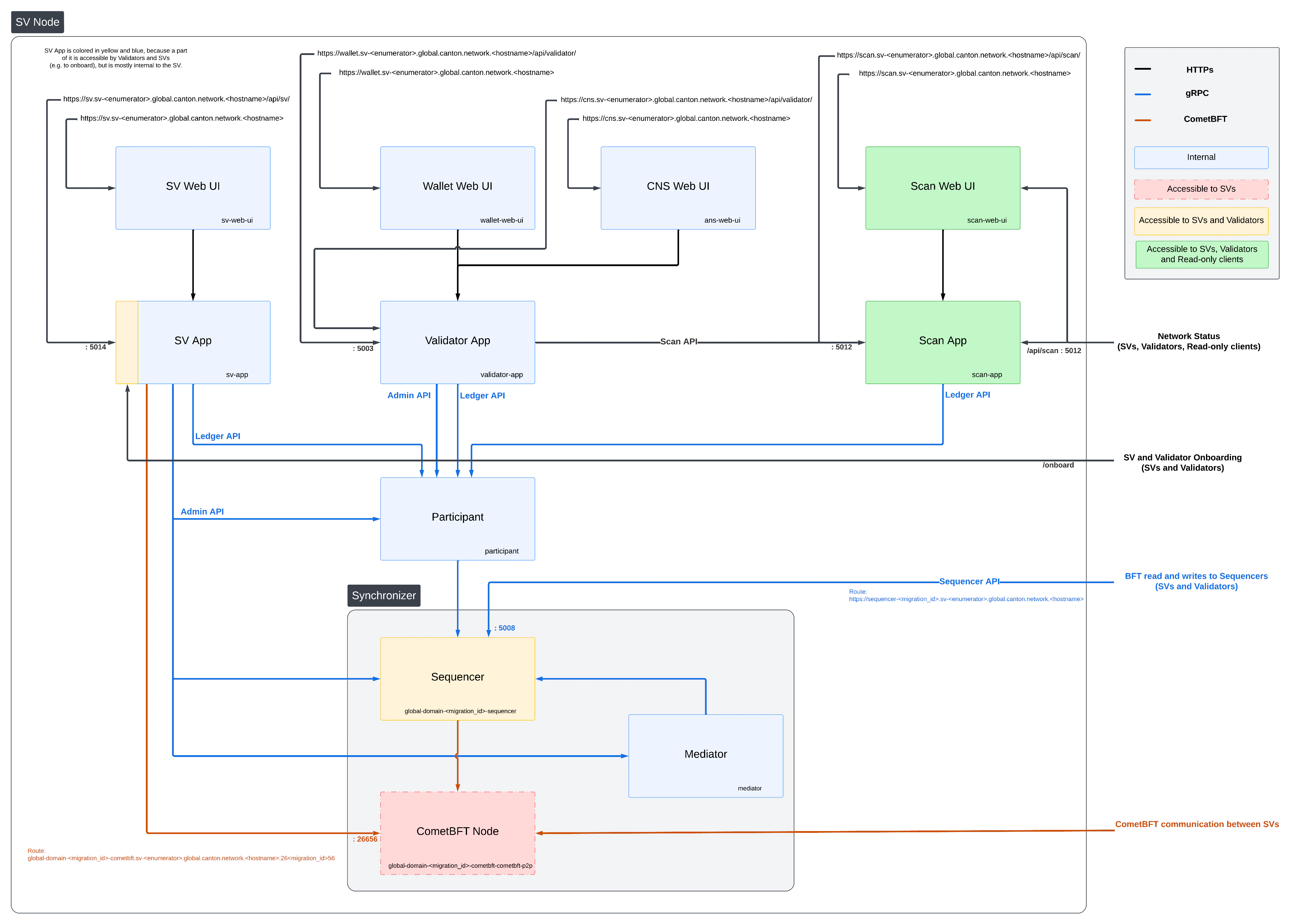
Configuring the Cluster Ingress
Hostnames and URLs
The SV operators have decided to follow the following convention for all SV hostnames and URLs:
- For DevNet, all hostnames should be in the format
<service-name>.sv-<enumerator>.dev.global.canton.network.<companyTLD>, where:<service-name>is the name of the service, e.g.,sv,wallet,scan<enumerator>is a unique number for each SV node operated by the same organization, starting at 1, e.g.sv-1for the first node operated by an organization.<companyTLD>is the top-level domain of the company operating the SV node, e.g.digitalasset.comfor Digital Asset.
- For TestNet, all hostnames should similarly be in the format
<service-name>.sv-<enumerator>.test.global.canton.network.<companyTLD>. - For MainNet, all hostnames should be in the format all hostnames should be in the format
<service-name>.sv-<enumerator>.global.canton.network.<companyTLD>(note that for MainNet, the name of the network, e.g. dev/test/main is ommitted from the hostname).
Note that the reference ingress charts provided below do not fully satisfy these requirements, as they ommit the enumerator part of the hostname.
Ingress Configuration
An IP whitelisting json file allowed-ip-ranges.json is maintained for each relevant network (DevNet, TestNet, MainNet) in the private SV configs repo. This file contains other clusters’ egress IPs that require access to your SV’s components. For example, it contains IPs belonging to peer super-validators and validators.
Each SV is required to configure their cluster ingress to allow traffic from these IPs to be operational.
https://wallet.sv.<YOUR_HOSTNAME>should be routed to servicewallet-web-uiin thesvnamespace.https://wallet.sv.<YOUR_HOSTNAME>/api/validatorshould be routed to/api/validatorat port 5003 of servicevalidator-appin thesvnamespace.https://sv.sv.<YOUR_HOSTNAME>should be routed to servicesv-web-uiin thesvnamespace.https://sv.sv.<YOUR_HOSTNAME>/api/svshould be routed to/api/svat port 5014 of servicesv-appin thesvnamespace.https://scan.sv.<YOUR_HOSTNAME>should be routed to servicescan-web-uiin thesvnamespace.https://scan.sv.<YOUR_HOSTNAME>/api/scanshould be routed to/api/scanat port 5012 in servicescan-appin thesvnamespace.https://scan.sv.<YOUR_HOSTNAME>/registryshould be routed to/registryat port 5012 in servicescan-appin thesvnamespace.global-domain-<SERIAL_ID>-cometbft.sv.<YOUR_HOSTNAME>:26<SERIAL_ID>56should be routed to port 26656 of serviceglobal-domain-<SERIAL_ID>-cometbft-cometbft-p2pin thesvnamespace using the TCP protocol. Please note that cometBFT traffic is purely TCP. TLS is not supported so SNI host routing for these traffic is not possible.https://cns.sv.<YOUR_HOSTNAME>should be routed to serviceans-web-uiin thesvnamespace.https://cns.sv.<YOUR_HOSTNAME>/api/validatorshould be routed to/api/validatorat port 5003 of servicevalidator-appin thesvnamespace.https://sequencer-<SERIAL_ID>.sv.<YOUR_HOSTNAME>should be routed to port 5008 of serviceglobal-domain-<SERIAL_ID>-sequencerin thesvnamespace.https://info.sv.<YOUR_HOSTNAME>should be routed to serviceinfoin thesvnamespace. This endpoint should be publicly accessible without any IP restrictions.
Internet ingress configuration is often specific to the network configuration and scenario of the cluster being configured. To illustrate the basic requirements of an SV node ingress, we have provided a Helm chart that configures the above cluster according to the routes above, as detailed in the sections below.
Your SV node should be configured with a url to your global-domain-sequencer so that other validators can subscribe to it.
Make sure your cluster’s ingress is correctly configured for the sequencer service and can be accessed through the provided URL. To check whether the sequencer is accessible, we can use the command below with the grpcurl tool :
grpcurl <sequencer host>:<sequencer port> grpc.health.v1.Health/CheckIf you are using the ingress configuration of this runbook, the <sequencer host>:<sequencer port> should be sequencer-SERIAL_ID.sv.YOUR_HOSTNAME:443 Please replace YOUR_HOSTNAME with your host name and SERIAL_ID with the serial ID of the synchronizer that the sequencer is part of.
If you see the response below, it means the sequencer is up and accessible through the URL.
{
  "status": "SERVING"
}
Requirements
In order to install the reference charts, the following must be satisfied in your cluster:
- cert-manager must be available in the cluster (See cert-manager documentation)
- istio should be installed in the cluster (See istio documentation)
Example of Istio installation:
helm repo add istio https://istio-release.storage.googleapis.com/charts
helm repo update
helm install istio-base istio/base -n istio-system --set defaults.global.istioNamespace=cluster-ingress --wait
helm install istiod istio/istiod -n cluster-ingress --set global.istioNamespace="cluster-ingress" --set meshConfig.accessLogFile="/dev/stdout"  --wait
Installation Instructions
```bash theme={"theme":{"light":"github-light","dark":"github-dark"}}
kubectl create ns cluster-ingress
```

Ensure that there is a cert-manager certificate available in a secret named `cn-net-tls`. An example of a suitable certificate definition:

```yaml theme={"theme":{"light":"github-light","dark":"github-dark"}}
apiVersion: cert-manager.io/v1
kind: Certificate
metadata:
   name: cn-certificate
   namespace: cluster-ingress
spec:
    dnsNames:
    - '*.sv.YOUR_HOSTNAME'
    issuerRef:
        name: letsencrypt-production
    secretName: cn-net-tls
```

Create a file named `istio-gateway-values.yaml` with the following content (Tip: on GCP you can get the cluster IP from `gcloud compute addresses list`):

```yaml theme={"theme":{"light":"github-light","dark":"github-dark"}}
service:
    loadBalancerIP: "YOUR_CLUSTER_IP"
    loadBalancerSourceRanges:
        - "35.194.81.56/32"
        - "35.198.147.95/32"
        - "35.189.40.124/32"
        - "34.132.91.75/32"
```

And install it to your cluster:

```bash theme={"theme":{"light":"github-light","dark":"github-dark"}}
helm install istio-ingress istio/gateway -n cluster-ingress -f istio-gateway-values.yaml
```

Create Istio Gateway resources in the `cluster-ingress` namespace. Save the following to a file named `gateways.yaml`, with the following modifications:

* Replace `YOUR_HOSTNAME` with the actual hostname of your SV node
* The second gateway (cn-apps-gateway) exposes ports for three migration IDs (0, 1, and 2) for the CometBFT apps of the SV node. If a higher migration ID is reached, expand that list using the same pattern.

```yaml theme={"theme":{"light":"github-light","dark":"github-dark"}}
apiVersion: networking.istio.io/v1alpha3
kind: Gateway
metadata:
  name: cn-http-gateway
  namespace: cluster-ingress
spec:
  selector:
    app: istio-ingress
    istio: ingress
  servers:
  - port:
      number: 443
      name: https
      protocol: HTTPS
    tls:
      mode: SIMPLE
      credentialName: cn-net-tls # name of the secret created above
    hosts:
    - "*.YOUR_HOSTNAME"
    - "YOUR_HOSTNAME"
  - port:
      number: 80
      name: http
      protocol: HTTP
    tls:
      httpsRedirect: true
    hosts:
    - "*.YOUR_HOSTNAME"
    - "YOUR_HOSTNAME"
---
apiVersion: networking.istio.io/v1alpha3
kind: Gateway
metadata:
  name: cn-apps-gateway
  namespace: cluster-ingress
spec:
  selector:
    app: istio-ingress
    istio: ingress
  servers:
  - port:
      number: 26016
      name: cometbft-0-1-6-gw
      protocol: TCP
    hosts:
      # We cannot really distinguish TCP traffic by hostname, so configuring to "*" to be explicit about that
      - "*"
  - port:
      number: 26116
      name: cometbft-1-1-6-gw
      protocol: TCP
    hosts:
      - "*"
  - port:
      number: 26216
      name: cometbft-2-1-6-gw
      protocol: TCP
    hosts:
      - "*"
```

And apply them to your cluster:

```bash theme={"theme":{"light":"github-light","dark":"github-dark"}}
kubectl apply -f gateways.yaml -n cluster-ingress
```

The http gateway terminates tls using the secret that you configured above, and exposes raw http traffic in its outbound port 443. Istio VirtualServices can now be created to route traffic from there to the required pods within the cluster. A reference Helm chart is provided for that, which can be installed after

1. replacing `YOUR_HOSTNAME` in `splice-node/examples/sv-helm/sv-cluster-ingress-values.yaml` and
2. setting `nameServiceDomain` in the same file to `"cns"`

using:

```bash theme={"theme":{"light":"github-light","dark":"github-dark"}}
helm install cluster-ingress-sv oci://ghcr.io/digital-asset/decentralized-canton-sync/helm/splice-cluster-ingress-runbook -n sv --version ${CHART_VERSION} -f splice-node/examples/sv-helm/sv-cluster-ingress-values.yaml
``````bash theme={"theme":{"light":"github-light","dark":"github-dark"}}
kubectl create ns cluster-ingress
```
Ensure that there is a cert-manager certificate available in a secret named `cn-net-tls`. An example of a suitable certificate definition:
```yaml theme={"theme":{"light":"github-light","dark":"github-dark"}}
apiVersion: cert-manager.io/v1
kind: Certificate
metadata:
name: cn-certificate
namespace: cluster-ingress
spec:
dnsNames:
- '*.sv.YOUR_HOSTNAME'
issuerRef:
name: letsencrypt-production
secretName: cn-net-tls
```
Create a file named `istio-gateway-values.yaml` with the following content (Tip: on GCP you can get the cluster IP from `gcloud compute addresses list`):
```yaml theme={"theme":{"light":"github-light","dark":"github-dark"}}
service:
loadBalancerIP: "YOUR_CLUSTER_IP"
loadBalancerSourceRanges:
- "35.194.81.56/32"
- "35.198.147.95/32"
- "35.189.40.124/32"
- "34.132.91.75/32"
```
And install it to your cluster:
```bash theme={"theme":{"light":"github-light","dark":"github-dark"}}
helm install istio-ingress istio/gateway -n cluster-ingress -f istio-gateway-values.yaml
```
Create Istio Gateway resources in the `cluster-ingress` namespace. Save the following to a file named `gateways.yaml`, with the following modifications:
* Replace `YOUR_HOSTNAME` with the actual hostname of your SV node
* The second gateway (cn-apps-gateway) exposes ports for three migration IDs (0, 1, and 2) for the CometBFT apps of the SV node. If a higher migration ID is reached, expand that list using the same pattern.
```yaml theme={"theme":{"light":"github-light","dark":"github-dark"}}
apiVersion: networking.istio.io/v1alpha3
kind: Gateway
metadata:
name: cn-http-gateway
namespace: cluster-ingress
spec:
selector:
app: istio-ingress
istio: ingress
servers:
- port:
number: 443
name: https
protocol: HTTPS
tls:
mode: SIMPLE
credentialName: cn-net-tls # name of the secret created above
hosts:
- "*.YOUR_HOSTNAME"
- "YOUR_HOSTNAME"
- port:
number: 80
name: http
protocol: HTTP
tls:
httpsRedirect: true
hosts:
- "*.YOUR_HOSTNAME"
- "YOUR_HOSTNAME"
---
apiVersion: networking.istio.io/v1alpha3
kind: Gateway
metadata:
name: cn-apps-gateway
namespace: cluster-ingress
spec:
selector:
app: istio-ingress
istio: ingress
servers:
- port:
number: 26016
name: cometbft-0-1-6-gw
protocol: TCP
hosts:
# We cannot really distinguish TCP traffic by hostname, so configuring to "*" to be explicit about that
- "*"
- port:
number: 26116
name: cometbft-1-1-6-gw
protocol: TCP
hosts:
- "*"
- port:
number: 26216
name: cometbft-2-1-6-gw
protocol: TCP
hosts:
- "*"
```
And apply them to your cluster:
```bash theme={"theme":{"light":"github-light","dark":"github-dark"}}
kubectl apply -f gateways.yaml -n cluster-ingress
```
The http gateway terminates tls using the secret that you configured above, and exposes raw http traffic in its outbound port 443. Istio VirtualServices can now be created to route traffic from there to the required pods within the cluster. A reference Helm chart is provided for that, which can be installed after
1. replacing `YOUR_HOSTNAME` in `splice-node/examples/sv-helm/sv-cluster-ingress-values.yaml` and
2. setting `nameServiceDomain` in the same file to `"cns"`
using:
```bash theme={"theme":{"light":"github-light","dark":"github-dark"}}
helm install cluster-ingress-sv oci://ghcr.io/digital-asset/decentralized-canton-sync/helm/splice-cluster-ingress-runbook -n sv --version ${CHART_VERSION} -f splice-node/examples/sv-helm/sv-cluster-ingress-values.yaml
``````bash theme={"theme":{"light":"github-light","dark":"github-dark"}}
kubectl create ns cluster-ingress
```
Ensure that there is a cert-manager certificate available in a secret named `cn-net-tls`. An example of a suitable certificate definition:
```yaml theme={"theme":{"light":"github-light","dark":"github-dark"}}
apiVersion: cert-manager.io/v1
kind: Certificate
metadata:
name: cn-certificate
namespace: cluster-ingress
spec:
dnsNames:
- '*.sv.YOUR_HOSTNAME'
issuerRef:
name: letsencrypt-production
secretName: cn-net-tls
```
Create a file named `istio-gateway-values.yaml` with the following content (Tip: on GCP you can get the cluster IP from `gcloud compute addresses list`):
```yaml theme={"theme":{"light":"github-light","dark":"github-dark"}}
service:
loadBalancerIP: "YOUR_CLUSTER_IP"
loadBalancerSourceRanges:
- "35.194.81.56/32"
- "35.198.147.95/32"
- "35.189.40.124/32"
- "34.132.91.75/32"
```
And install it to your cluster:
```bash theme={"theme":{"light":"github-light","dark":"github-dark"}}
helm install istio-ingress istio/gateway -n cluster-ingress -f istio-gateway-values.yaml
```
Create Istio Gateway resources in the `cluster-ingress` namespace. Save the following to a file named `gateways.yaml`, with the following modifications:
* Replace `YOUR_HOSTNAME` with the actual hostname of your SV node
* The second gateway (cn-apps-gateway) exposes ports for three migration IDs (0, 1, and 2) for the CometBFT apps of the SV node. If a higher migration ID is reached, expand that list using the same pattern.
```yaml theme={"theme":{"light":"github-light","dark":"github-dark"}}
apiVersion: networking.istio.io/v1alpha3
kind: Gateway
metadata:
name: cn-http-gateway
namespace: cluster-ingress
spec:
selector:
app: istio-ingress
istio: ingress
servers:
- port:
number: 443
name: https
protocol: HTTPS
tls:
mode: SIMPLE
credentialName: cn-net-tls # name of the secret created above
hosts:
- "*.YOUR_HOSTNAME"
- "YOUR_HOSTNAME"
- port:
number: 80
name: http
protocol: HTTP
tls:
httpsRedirect: true
hosts:
- "*.YOUR_HOSTNAME"
- "YOUR_HOSTNAME"
---
apiVersion: networking.istio.io/v1alpha3
kind: Gateway
metadata:
name: cn-apps-gateway
namespace: cluster-ingress
spec:
selector:
app: istio-ingress
istio: ingress
servers:
- port:
number: 26016
name: cometbft-0-1-6-gw
protocol: TCP
hosts:
# We cannot really distinguish TCP traffic by hostname, so configuring to "*" to be explicit about that
- "*"
- port:
number: 26116
name: cometbft-1-1-6-gw
protocol: TCP
hosts:
- "*"
- port:
number: 26216
name: cometbft-2-1-6-gw
protocol: TCP
hosts:
- "*"
```
And apply them to your cluster:
```bash theme={"theme":{"light":"github-light","dark":"github-dark"}}
kubectl apply -f gateways.yaml -n cluster-ingress
```
The http gateway terminates tls using the secret that you configured above, and exposes raw http traffic in its outbound port 443. Istio VirtualServices can now be created to route traffic from there to the required pods within the cluster. A reference Helm chart is provided for that, which can be installed after
1. replacing `YOUR_HOSTNAME` in `splice-node/examples/sv-helm/sv-cluster-ingress-values.yaml` and
2. setting `nameServiceDomain` in the same file to `"cns"`
using:
```bash theme={"theme":{"light":"github-light","dark":"github-dark"}}
helm install cluster-ingress-sv oci://ghcr.io/digital-asset/decentralized-canton-sync/helm/splice-cluster-ingress-runbook -n sv --version ${CHART_VERSION} -f splice-node/examples/sv-helm/sv-cluster-ingress-values.yaml
```Configuring the Cluster Egress
Below is a complete list of destinations for outbound traffic from the Super Validator node. This list is useful for an SV that wishes to limit egress to only allow the minimum necessary outbound traffic. S will be used a shorthand for SERIAL_ID. The tables below are wide - you might need to scroll vertically to see the rightmost columns.
Connectivity to the following destinations is required throughout operation to ensure the robustness of the ordering layer and scan:
| Destination | Url | Protocol | Source pod |
|---|---|---|---|
| CometBft P2P | CometBft p2p IPs and ports 26<S>16, 26<S>26, 26<S>36, 26<S>46, 26<S>56 | TCP | global-domain-<S>-cometbft |
| All SV Scans | all returned from https://scan.sv-1.<TARGET_HOSTNAME>/api/scan/v0/scans | HTTPS | scan-app |
Connectivity from the local scan app to the scan instances of all other SVs is required so that the scan app can backfill its data in a BFT fashion. It might also be required in the future to support the operation of the ordering layer (post CometBFT). To get a list of all current scan instances, you can query the /api/scan/v0/scans endpoint on any scan instances known to you. For example using the sponsor’s scan instance (and with some optional post-processing using jq):
curl https://scan.sv-1.<TARGET_HOSTNAME>/api/scan/v0/scans | jq -r '.scans.[].scans.[].publicUrl'| Destination | Url | Protocol | Source pod |
|---|---|---|---|
| Sponsor SV | sv.sv-1.<TARGET_HOSTNAME>:443 | HTTPS | sv-app |
| CometBft JSON RPC | sv.sv-1.<TARGET_HOSTNAME>:443/api/sv/v0/admin/domain/cometbft/json-rpc | HTTPS | global-domain-<S>-cometbft |
| Sponsor SV Sequencer | sequencer-<S>.sv-1.<TARGET_HOSTNAME>:443 | HTTPS | participant-<S> |
| Sponsor SV Scan | scan.sv-1.<TARGET_HOSTNAME>:443 | HTTPS | validator-app |
Note that you need to substitute both <TARGET_HOSTNAME> and sv-1 in the above table to match the address of your SV onboarding sponsor. Note also that the address for the CometBft JSON RPC is configured in cometbft-values.yaml (under stateSync.rpcServers). Any onboarded SV can act as an SV onboarding sponsor.
In general, connectivity to the sponsor SV (outside of scan) is only required during SV onboarding. Connectivity to the sponsor SV sequencer is required also for a limited transition time after onboarding during which the newly onboarded SV sequencer is not ready for use yet (60 seconds with the current Global Synchronizer configuration).
Logging into the wallet UI
After you deploy your ingress, open your browser at https://wallet.sv.YOUR_HOSTNAME and login using the credentials for the user that you configured as validatorWalletUser earlier. You will be able to see your balance increase as mining rounds advance every 2.5 minutes and you will see sv_reward_collected entries in your transaction history. Once logged in one should see the transactions page.
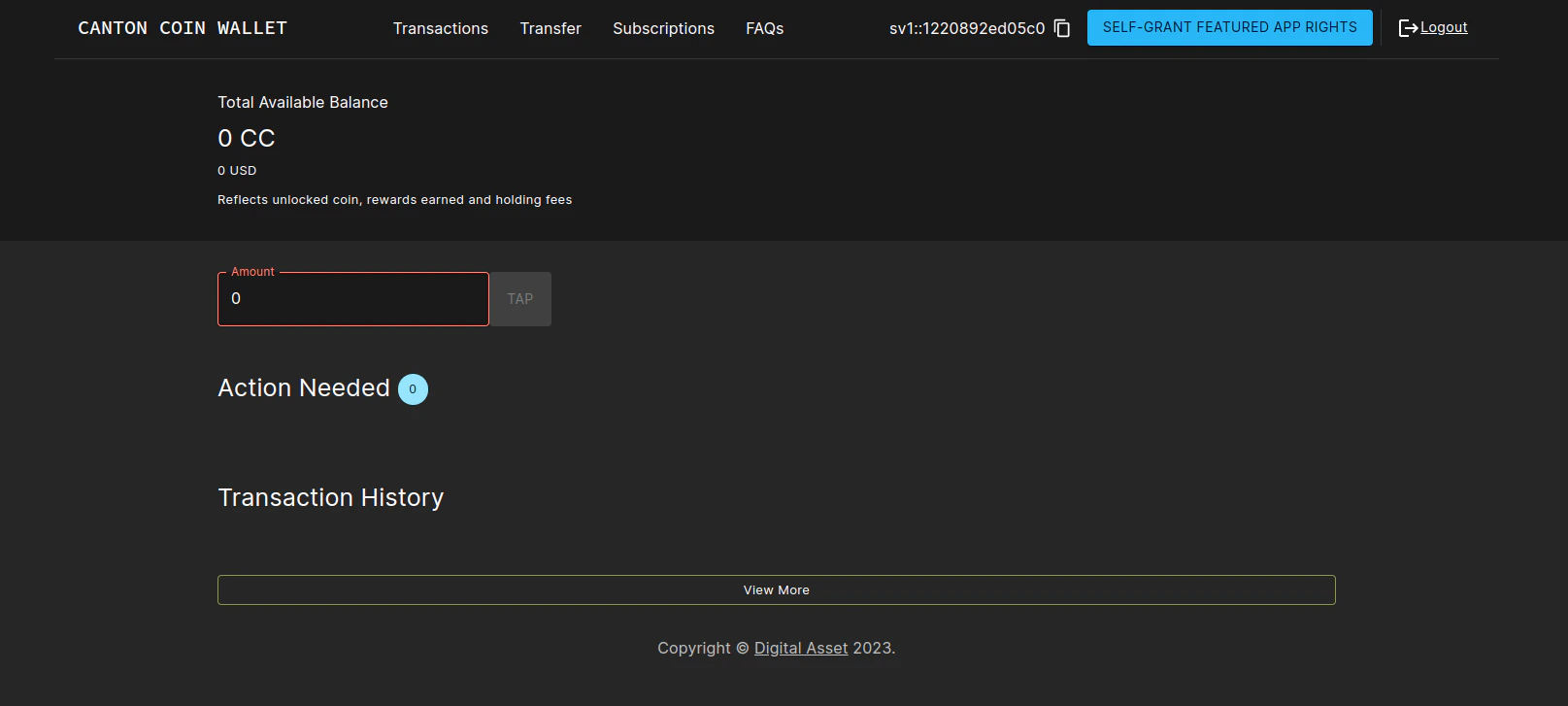
Logging into the CNS UI
You can open your browser at https://cns.sv.YOUR_HOSTNAME and login using the credentials for the user that you configured as validatorWalletUser earlier. You will be able to register a name on the Canton Name Service.
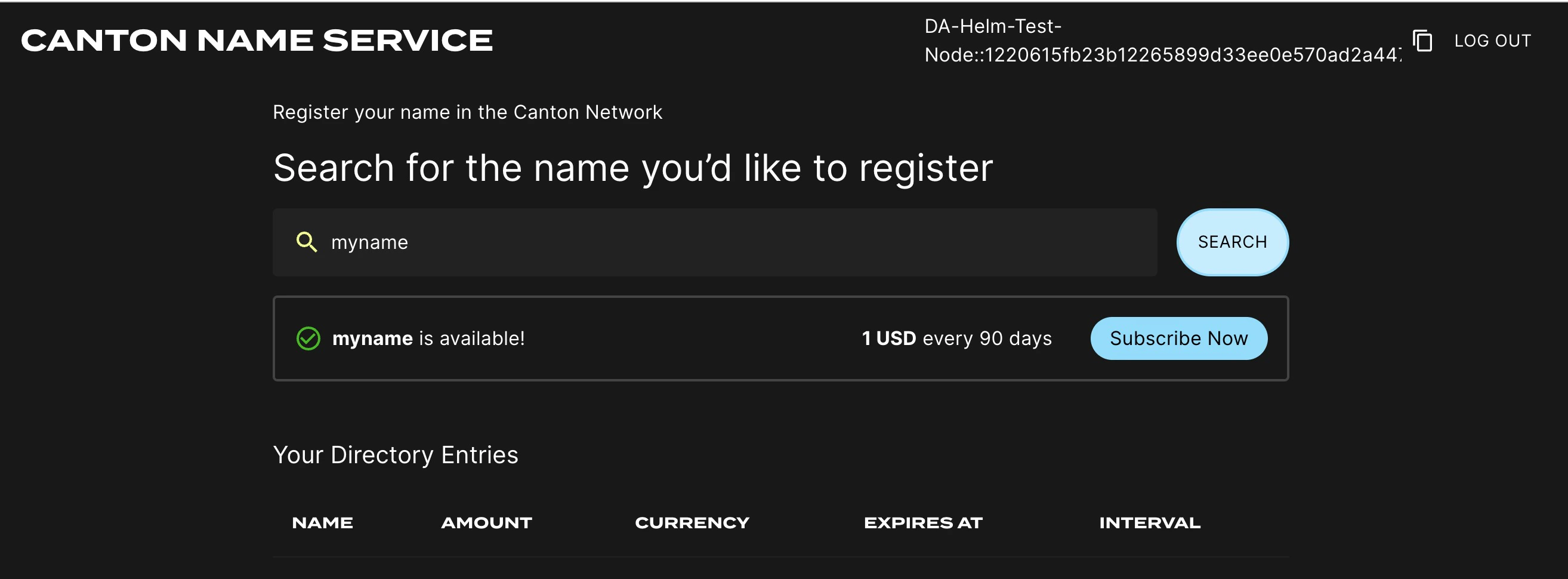
Logging into the SV UI
Open your browser at https://sv.sv.YOUR_HOSTNAME to login to the SV Operations user interface. You can use the credentials of the validatorWalletUser to login. These are the same credentials you used for the wallet login above. Note that only Super validators will be able to login. Once logged in one should see a page with some SV collective information.
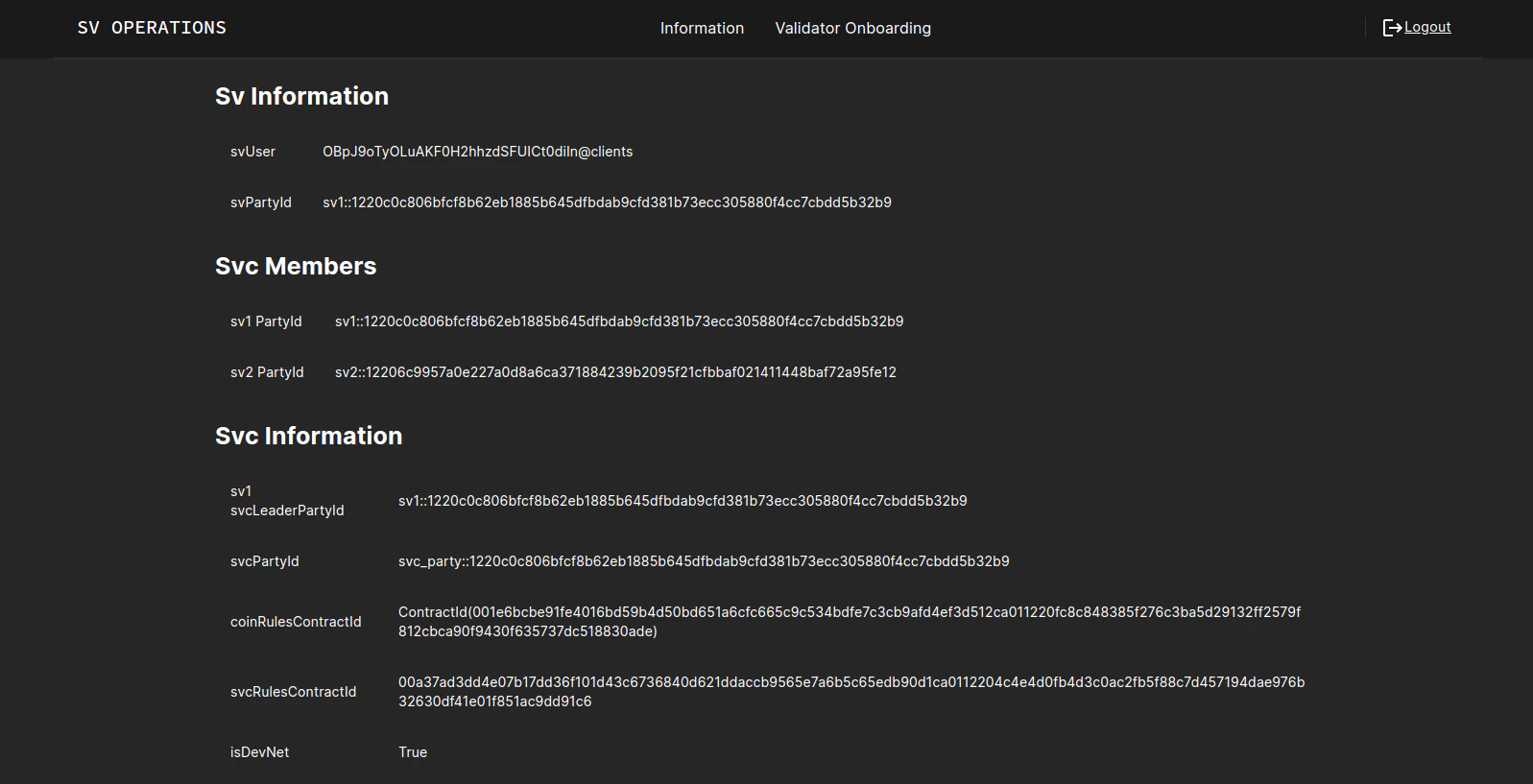
The SV UI presents also some useful debug information for the CometBFT node. To see it, click on the “CometBFT Debug Info” tab. If your CometBFT is configured correctly, and it has connectivity to all other nodes, you should see n_peers that is equal to the size of the DSO, excluding your own node, and you should see all peer SVs listed as peers (their human-friendly names will be listed in the moniker fields).
Following an Amulet Conversion Rate Feed
Each SV can chose the amulet conversion rate they want to set in their SV UI. The conversion rate for each mining round is then chosen as the median of the conversion rate published by all SVs.
Instead of manually updating the conversion rate through the SV UI, it is also possible to configure the SV app to follow the conversion rate feed provided by a given publisher.
To do so, add the following to the environment variables of your SV app:
This will automatically pick up the conversion rate from #splice-amulet-name-service:Splice.Ans.AmuletConversionRateFeed:AmuletConversionRateFeed contracts published by the party publisher::namespace and set the SV’s config to the latest rate from the publisher. If the published rate falls outside of the accepted range, a warning is logged and the published rate is clamped to the configured range.
Note that SVs must wait voteCooldownTime (a governance parameter that defaults to 1min) between updates to their rate. Therefore updates made by the publisher will not propagate immediately.
- name: ADDITIONAL_CONFIG_FOLLOW_AMULET_CONVERSION_RATE_FEED
  value: |
    canton.sv-apps.sv.follow-amulet-conversion-rate-feed {
      publisher = "publisher::namespace"
      accepted-range = {
        min = 0.01
        max = 100.0
      }
    }
Mirrored from Canton Network official documentation (CC-BY-4.0) by CC Privacy Club for learning purposes.
Footnotes
-
The URL must be reachable from the Canton participant, validator app and SV app running in your cluster, as well as from all web browsers that should be able to interact with the SV and wallet UIs. ↩